[Week 19] Learning Mixpanel: Alerts
![[Week 19] Learning Mixpanel: Alerts](/content/images/size/w1200/2026/02/e00ebdec-6383-4e40-8df4-f8fd966289c1_978x693.png)
Introduction
Welcome to Week 19 of Learning Mixpanel. I’m Ansh, a Mixpanel Certified Partner. I’ve had the privilege of working with 60+ startups, helping them set up their analytics infrastructure and gain actionable insights using Mixpanel.
Curious about my work? Check out my website for case studies, testimonials, and more details about what I do.
Tired of Mixpanel data going wrong - events missing, properties breaking, or random spikes?
Pravix makes it simple to detect these issues and keep your data clean.
Today, I’m going to talk about how to Set up alerts in Mixpanel reports.
Let’s get into it
If your preferred consumption is audio visual - access the video on Youtube
Alerts notify you when a metric crosses a set threshold.
You can create an alert by saving a report, clicking on the 3 dots next to it, then selecting Alerts Create Alert.
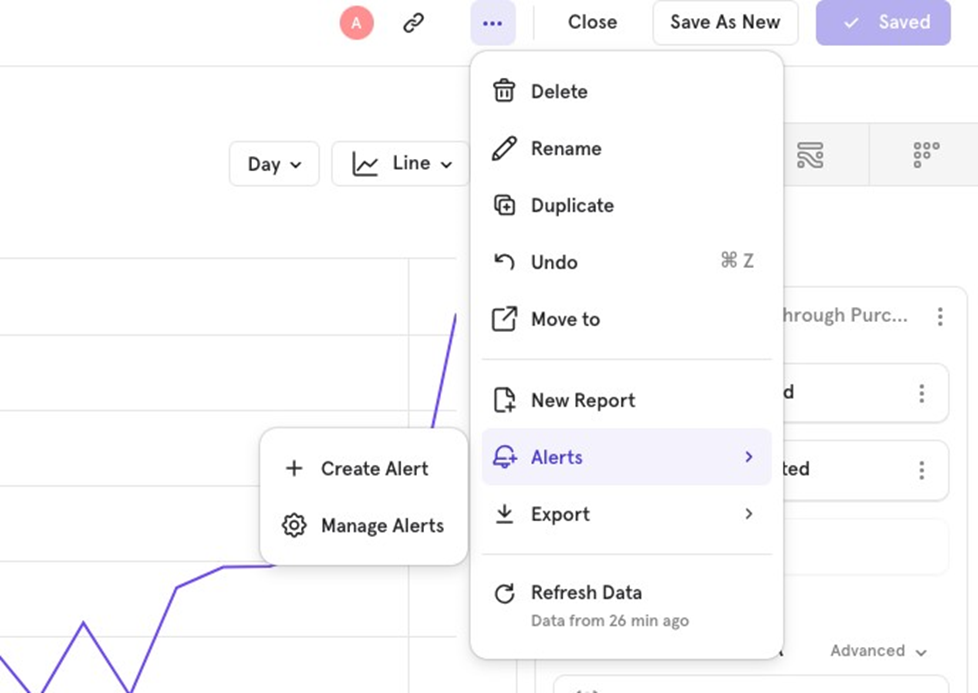
Alerts are available in Insights and Funnel reports. There are two types of alerts:
- Anomaly Detected
- Custom Threshold Met
Anomaly detected Insights report
This alert triggers when a metric goes outside the expected range. You set a confidence interval percentage (e.g., 95%, which creates boundaries for alert triggering.
Example: If signups exceed or fall below the confidence range, an alert is triggered. Based on the 95% confidence interval, the purple range shows the upper and lower boundaries for the alert. If the number of sign-ups falls outside this range, an alert will be triggered.
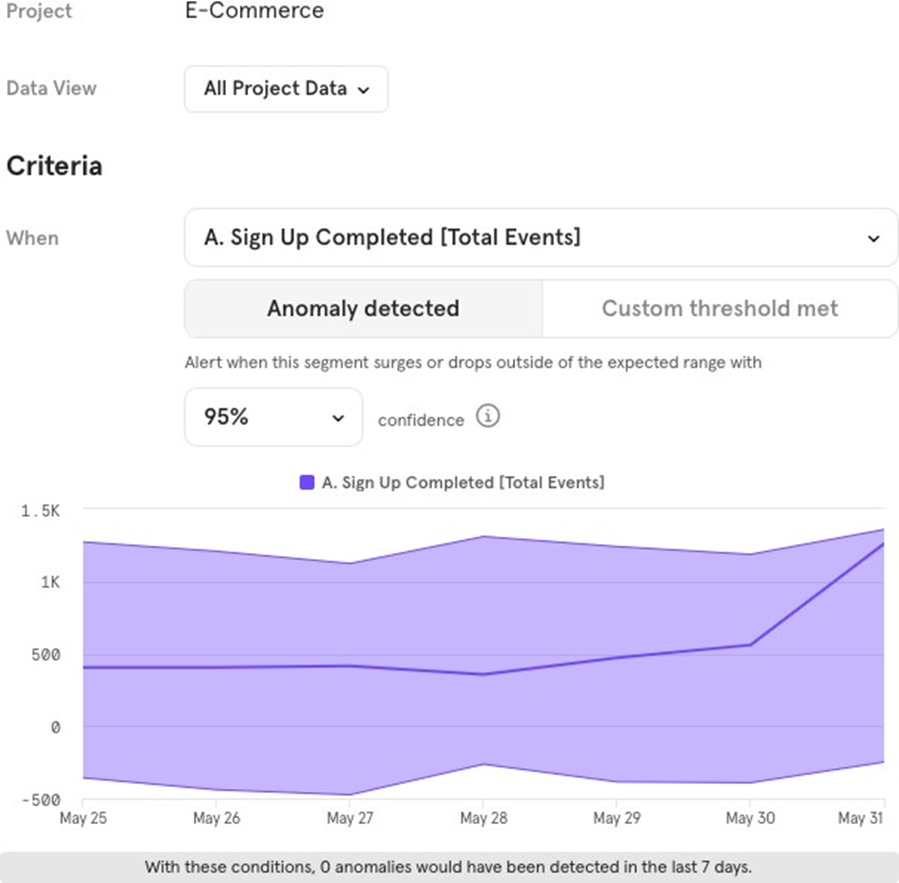
Note: The alert calculation depends on how your report is aggregated. If your report is set to daily, the 95% confidence interval will be calculated on a daily basis. If the report is aggregated hourly, it will be calculated for each hour.
Custom Threshold met Insights report
This type of alert triggers when a metric crosses a specific threshold that you set.
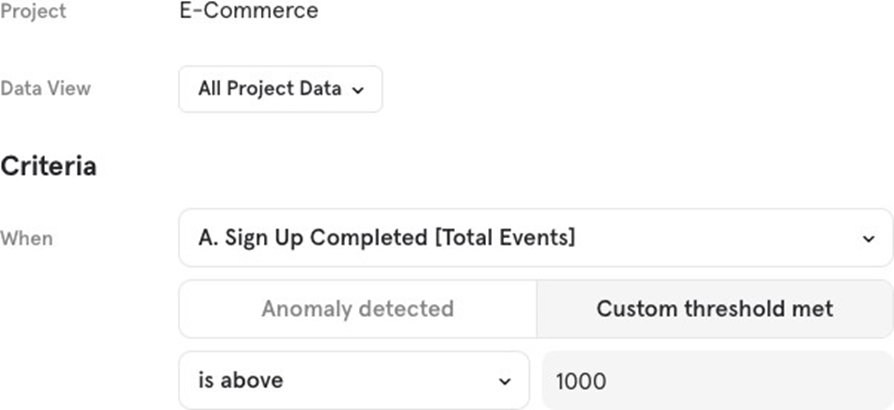
You can choose from four options:
- Is above: Triggers when the value exceeds a certain number (e.g., signups exceed 1000).
- Is below: Triggers when the value falls below a certain number (e.g., signups drop below 100).
- Increases by more than: Triggers if the metric increases by a specific number or percentage (e.g., signups increase by more than 100 or 5%).
- Decreases by more than: Triggers if the metric decreases by a specific number or percentage (e.g., signups decrease by more than 100 or 5%).
Note: The alert calculation is based on how the report is aggregated. For example, if the report is aggregated at a daily level, the “increase by more than” value will be calculated daily. If the report is aggregated hourly, the calculation will be done on an hourly basis.
Anomaly detected Funnels report
Anomaly detection alerts trigger when the percentage or number goes outside the expected range. You set a confidence interval (e.g., 95%), which defines the upper and lower boundaries for triggering the alert. The higher the confidence interval, the less likely it is to get a false positive.
Example: You want to be alerted when the percentage of sign-ups to purchases goes beyond the expected range. By choosing a 95% confidence interval, Mixpanel calculates the boundaries, and if the conversion rate falls outside the purple range, an alert is triggered.
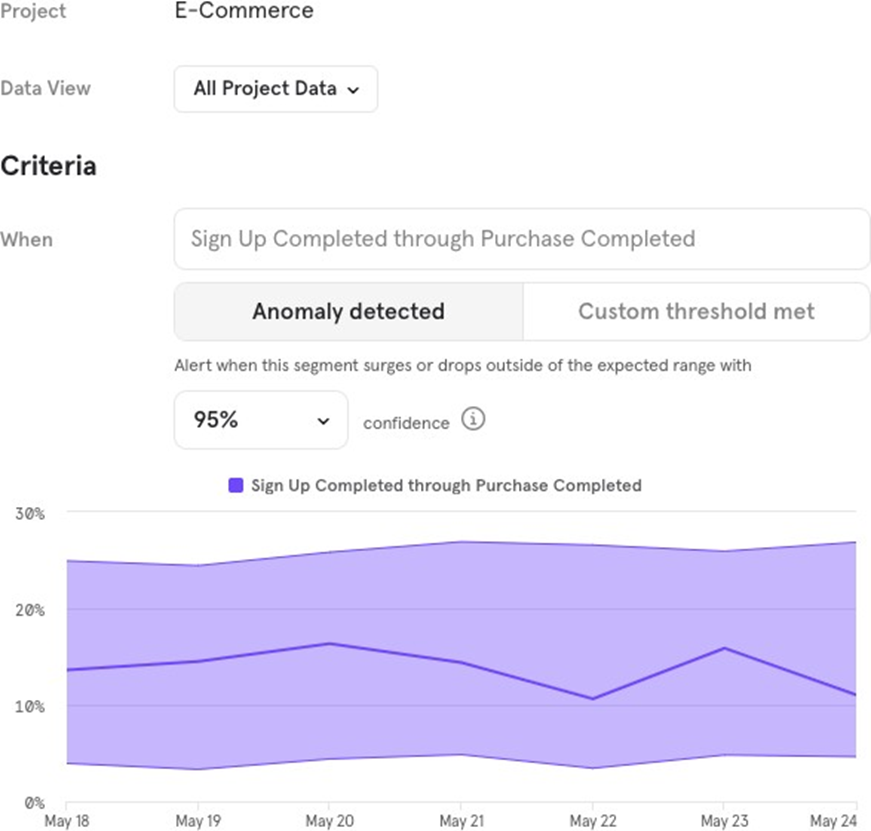
Note: Alert calculations depend on the aggregation of your report. If the report is aggregated daily, the confidence interval will be calculated daily. If aggregated hourly, it will be calculated hourly.
Custom Threshold met Funnels report
This alert triggers when a specific number or percentage is met or crossed. For example, you want to set an alert for the percentage of sign-ups to purchases completed.
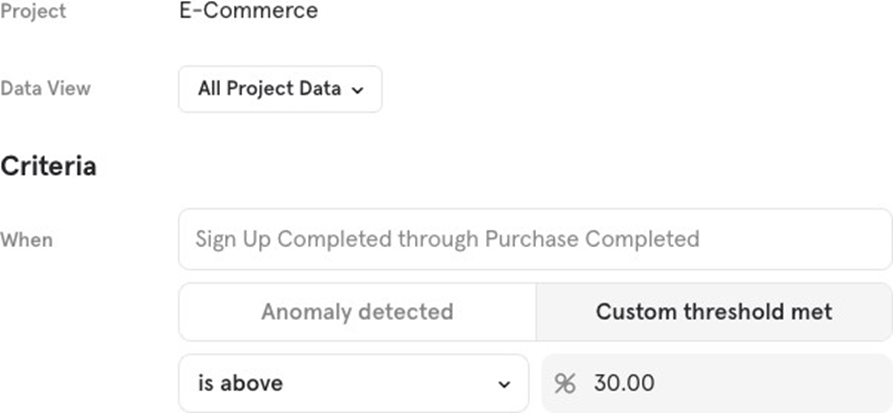
You can choose between two options:
- Is above: If the percentage goes above a certain number, like 30%, the alert is triggered.
- Is below: If the percentage drops below a certain number, like 20%, the alert is triggered.
Note: The alert calculation depends on how your report is aggregated. For instance, if it’s aggregated daily, the alert will be based on daily values. If it’s hourly, the alert will be based on hourly values.
Notify Frequency
You can set how often youʼd like to receive alerts:
- Hourly
- Daily
- Weekly
- Monthly
For example, if you want to be alerted when daily sign-ups exceed 1,000.
- If the frequency is set to hourly, Mixpanel will check every hour if the alert condition is met.
- If itʼs set to daily, Mixpanel will check once per day and trigger the alert if the condition is met.

Notify Medium
You can receive alerts via email or Slack.
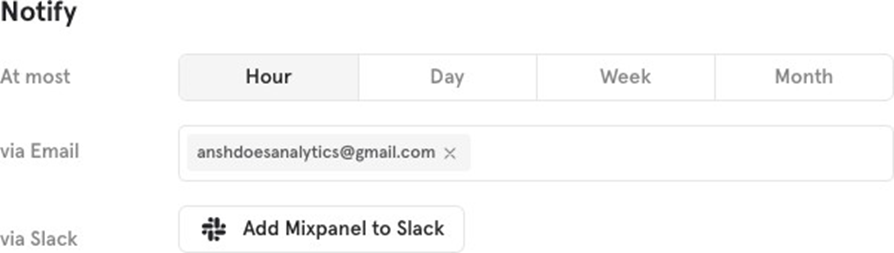
- Via Email: Enter the email addresses where you want the alerts sent.
- Via Slack: Connect your Slack account and choose a channel to receive the alerts.

![[Week 28] Learning Mixpanel: Computed Properties](/content/images/size/w600/2026/02/e73fb366-1c52-4f79-a28f-4a0b60d6998c_836x723.png)
![[Week 27] Learning Mixpanel: Bucket Customisation Types](/content/images/size/w600/2026/02/a81f7bcb-4886-4711-b1b8-af8c5fc6b1b8_463x476.png)
![[Week 26] Learning Mixpanel: Mastering Attribution with Mixpanel](/content/images/size/w600/2026/02/4e3a164c-bfb1-479f-9f09-2f8890eac413_885x787.png)