[Week 24] Learning Mixpanel: Custom Properties
![[Week 24] Learning Mixpanel: Custom Properties](/content/images/size/w1200/2026/02/961aa15c-59ee-4e31-b84e-9e1bbcc65c27_849x784.png)
Introduction
Welcome to Week 24 of Learning Mixpanel. I’m Ansh, a Mixpanel Certified Partner. I’ve had the privilege of working with 60+ startups, helping them set up their analytics infrastructure and gain actionable insights using Mixpanel.
Curious about my work? Check out my website for case studies, testimonials, and more details about what I do.
Tired of Mixpanel data going wrong - events missing, properties breaking, or random spikes?
Pravix makes it simple to detect these issues and keep your data clean.
Today, I’m going to talk about how to use custom properties in Mixpanel.
Let’s get into it
If your preferred consumption is audio visual - access the video on Youtube
Custom properties allow you to create new properties by transforming or combining existing ones, similar to Excel formulas. These can either be event properties or profile properties, offering flexibility in how you manipulate and analyze your data.
Some common use cases:
- Grouping Marketing Channels: You can classify marketing channels into “Paid” vs. “Unpaid” categories.
- Calculating Age: Extract the age of a user by subtracting their birth year from the current year.
- Calculating Total Price: Multiply the quantity and price per product to get the total price.
Hereʼs how to create a custom property:
- Go to the Filter/Breakdown menu.
- Select Create Custom Event Property.
- Choose how you want to transform your data using simple formulas or logic.
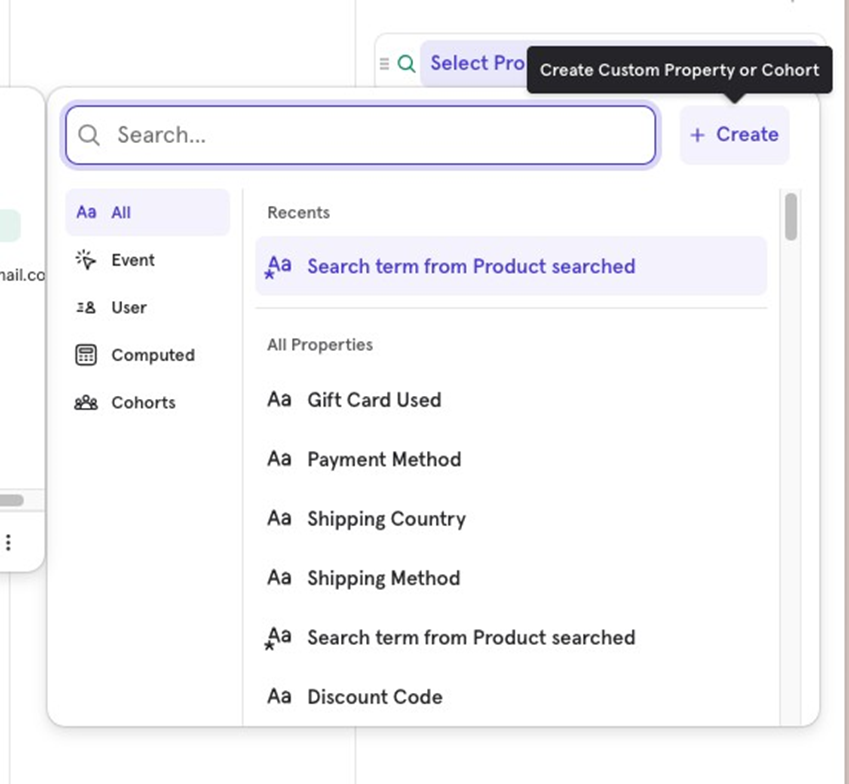
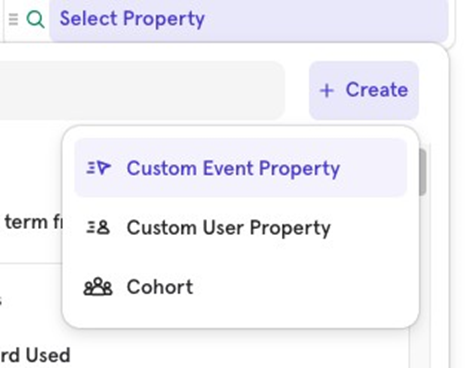
Imagine you have a “subtotal” property in your “Purchase Completed” event, and you want to group it into buckets for easier analysis.
Select Create Custom Event Property from the Filter/Breakdown menu.
Define your buckets:
- If subtotal< 100, label it “Under 100”.
- If subtotal>= 100, label it “100 and Over”.
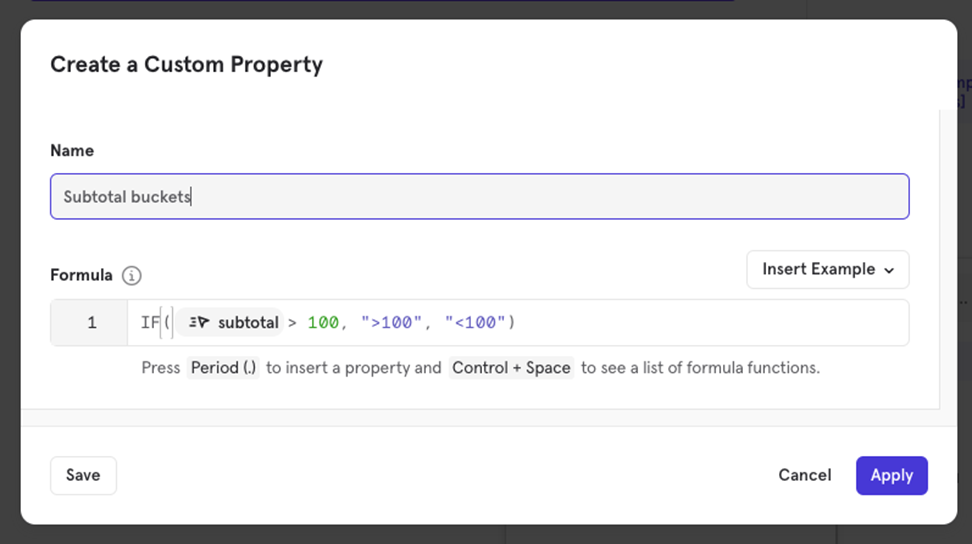
Using Formulas
Mixpanel allows you to apply formulas to manipulate your data. Hereʼs how you can work with formulas:
- Type “.ˮ This brings up a list of properties you can select from, making it easy to insert a property.
- Example: Type “ . “ to select the Subtotal property.
- Press “Control Spaceˮ : This displays a drop-down list of available formulas that you can use to transform your data.
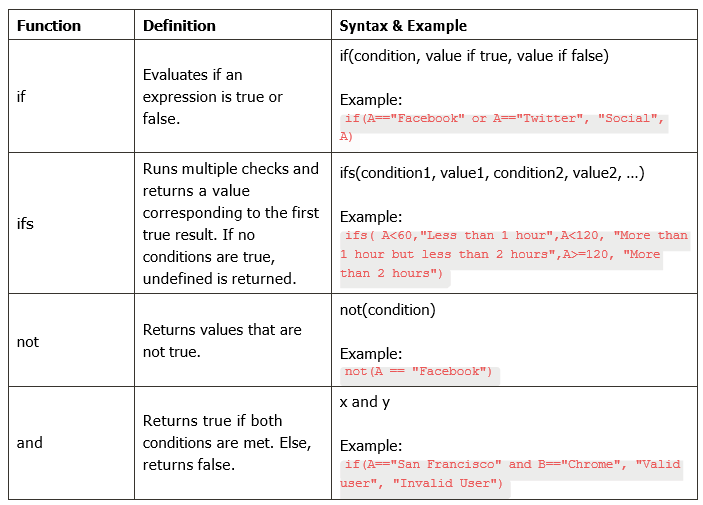
List of Formulas
Mixpanel supports various formulas, numeric operators, and comparison operators that help you create more advanced custom properties. Here are some of the key options:
Formulas
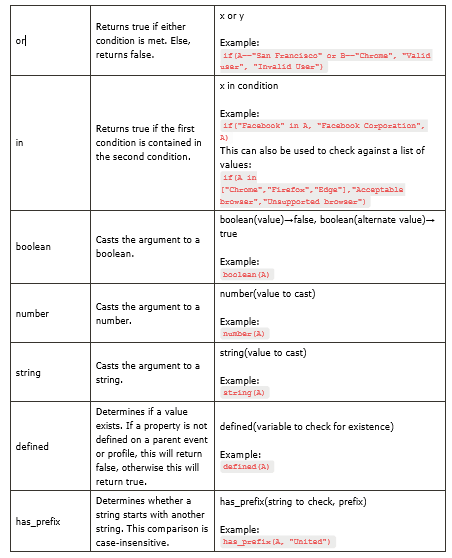
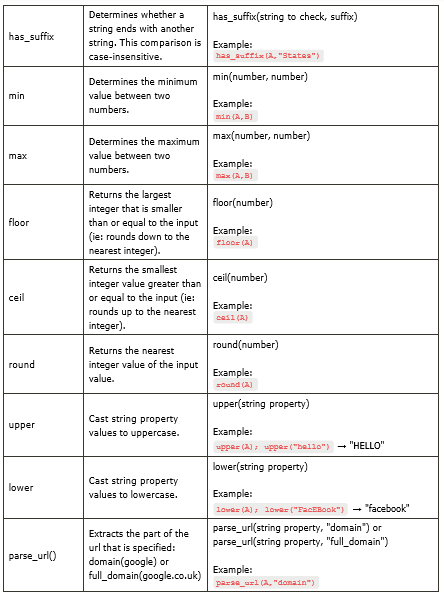
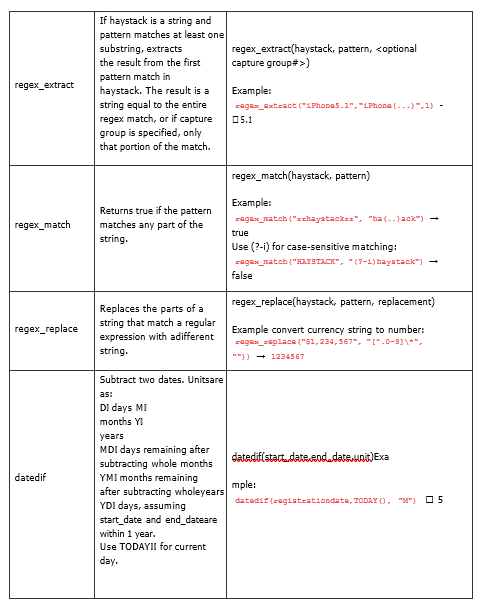
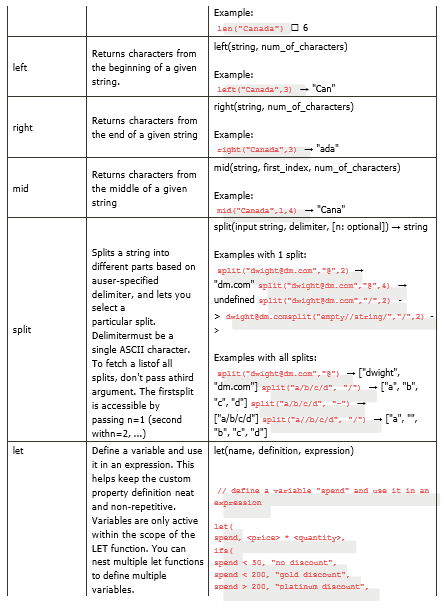

Numeric Operators
Mixpanel supports the following numeric operators:
- + Addition (Can also be used to create a concatenation)
- - Subtraction
- * Multiplication
- / Division
- %Modulo
Comparison Operators
Mixpanel supports the following comparison operators:
- < The first number is strictly less than the second number.
- > The first number is strictly greater than the second number.
- >= The first number is greater than or equal to the second number.
- <= The first number is less than or equal to the second number.
- == The first argument is equal to the second argument. If both arguments are strings, the comparison is case-insensitive.
- != The first argument is not equal to the second argument. If both arguments are strings, the comparison is case-insensitive.

![[Week 28] Learning Mixpanel: Computed Properties](/content/images/size/w600/2026/02/e73fb366-1c52-4f79-a28f-4a0b60d6998c_836x723.png)
![[Week 27] Learning Mixpanel: Bucket Customisation Types](/content/images/size/w600/2026/02/a81f7bcb-4886-4711-b1b8-af8c5fc6b1b8_463x476.png)
![[Week 26] Learning Mixpanel: Mastering Attribution with Mixpanel](/content/images/size/w600/2026/02/4e3a164c-bfb1-479f-9f09-2f8890eac413_885x787.png)