[Week 25] Learning Mixpanel: Warehouse Connectors
![[Week 25] Learning Mixpanel: Warehouse Connectors](/content/images/size/w1200/2026/02/4cff7069-5e30-4732-9d61-2e24087994f7_968x616.png)
Introduction
Welcome to Week 25 of Learning Mixpanel. I’m Ansh, a Mixpanel Certified Partner. I’ve had the privilege of working with 60+ startups, helping them set up their analytics infrastructure and gain actionable insights using Mixpanel.
Curious about my work? Check out my website for case studies, testimonials, and more details about what I do.
Tired of Mixpanel data going wrong - events missing, properties breaking, or random spikes?
Pravix makes it simple to detect these issues and keep your data clean.
Today, I’m going to talk about how to use warehouse connectors in Mixpanel
Let’s get into it
If your preferred consumption is audio visual - access the video on Youtube
Mixpanel allows you to load different types of tables from supported warehouses.
To sync your data from a warehouse into Mixpanel, navigate to Project Settings →
Warehouse Sources. Warehouse connectors allow you to:
- Sync data directly from your warehouse to Mixpanel for seamless integration.
- Enrich user profiles with additional data stored in your warehouse.
- Keep your event data updated to reflect changes in state over time, such as status changes or transaction updates.
Mixpanel currently supports data import from the following four warehouses:
- BigQuery
- Snowflake
- Databricks
- Redshift
Table Types
Here are the four supported table types:
- Events
- User Profiles
- Group profiles
- Lookup Tables
Events
When using the Events table type to sync data from your warehouse to Mixpanel, you’ll need to ensure that your table includes at least two essential columns:
- User ID: This maps the event to the corresponding user profile in Mixpanel. If a user profile doesn’t exist yet, Mixpanel will automatically create one based on this User ID.
- Timestamp: This specifies when the event occurred and will be used to set the time for the event in Mixpanel.
Other columns, such as event properties, are optional but can provide additional data for analysis:
- Event Name: You’ll need to specify the name of the event for Mixpanel to recognize it.
- Device ID (optional): If your data includes anonymous users, you can add a Device ID column to track these users before they authenticate. This is helpful when you want to unify the anonymous user activity with the authenticated user by mapping both the Device ID and User ID into a single user profile.
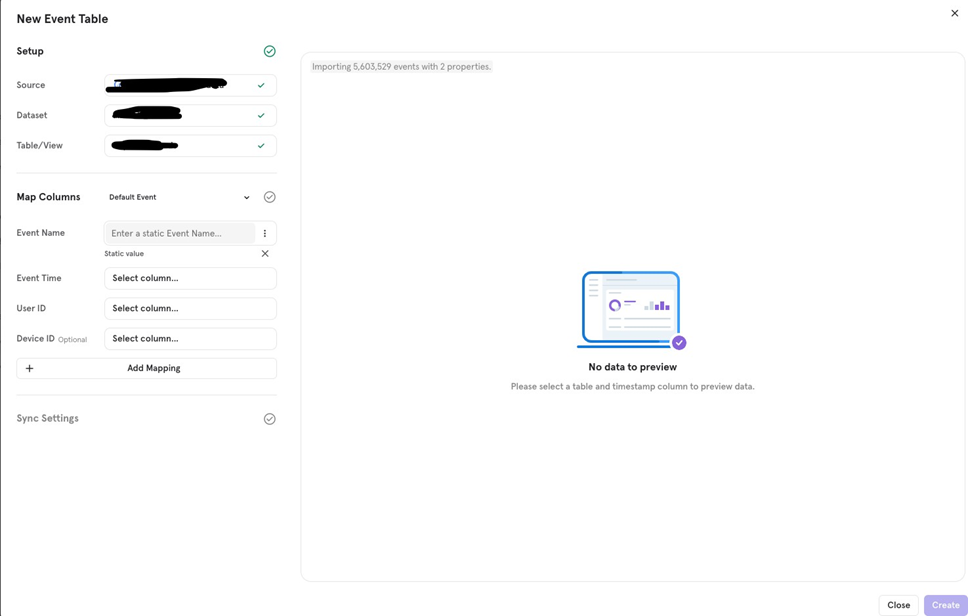
User Profiles
When using the User Profiles table type in Mixpanel, you can sync user data from your warehouse or update existing user properties. Here’s how it works:
- The only required field is User ID, which Mixpanel uses to map or create user profiles. Other columns can be optional user properties like name, email, or subscription status.
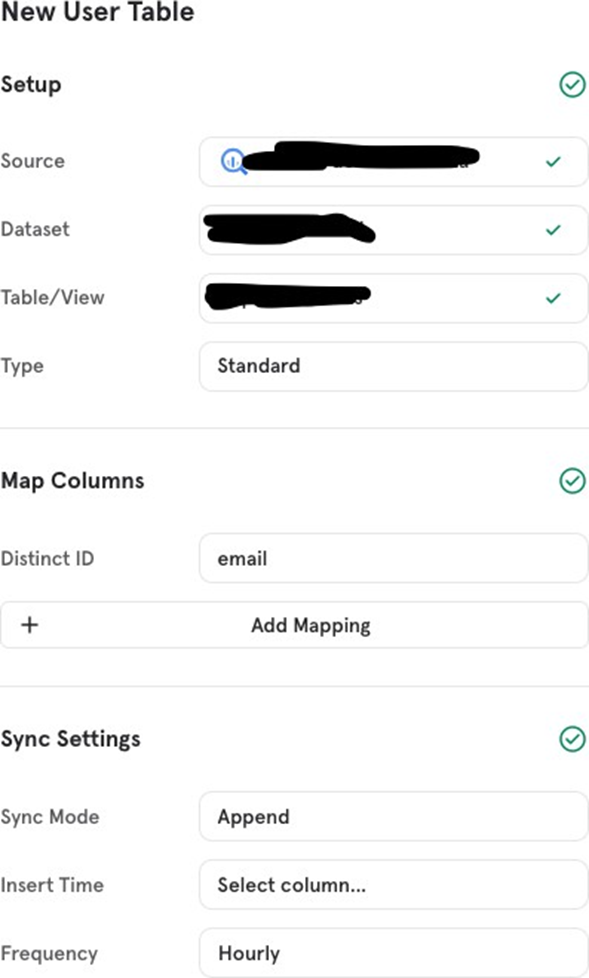
You can choose the Type of Table, out of Standard or History:
- Standard: This type overwrites existing user properties with the most recent data. It does not store any historical records, so it’s useful when you only need the latest user information (e.g., user name or location updates).
- History: This table type stores changes over time by including timestamp fields. It is beneficial for tracking time-sensitive properties like subscription start/end dates, plan upgrades, or status changes. Each change is associated with a timestamp to understand when it occurred.
Group Profiles
With the Group Profiles table type, you can sync group-level data to Mixpanel, similar to how you sync user-level data. The required column is Group Key, which uniquely identifies each group (e.g., a company or team) in Mixpanel.
Similar to User Profiles, Group Profiles also support Standard and History tables.
Lookup Tables
Using Lookup Tables via warehouse connectors allows for dynamic updates, offering a more powerful and flexible alternative to static lookup tables created using Lexicon.
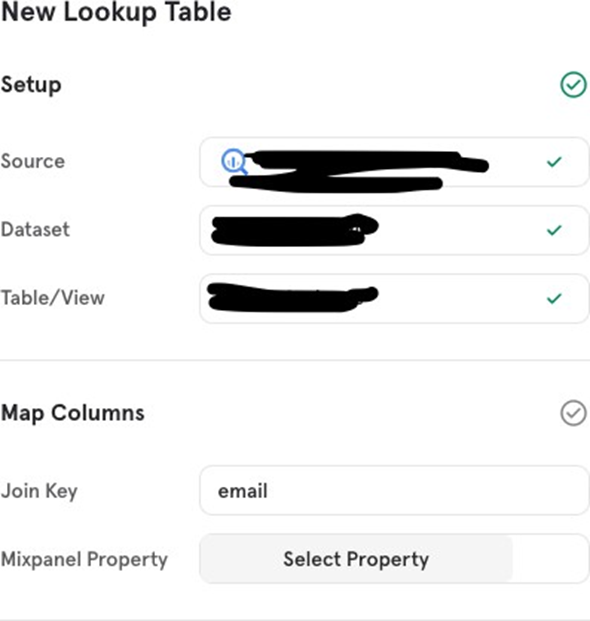
Hereʼs the setup:
- Select the table (similar to the csv)
- Join Key: This is the unique identifier (key) from your warehouse data, which corresponds to a Mixpanel property. Itʼs used to map additional data to Mixpanel events or profiles.
- Mixpanel Property: This is the existing Mixpanel property that the Join Key will map to. When they match, the data from the warehouse will enrich that property with new or updated information.
Sync modes
Mixpanel offers four sync modes when integrating with warehouse connectors. Each mode allows for different ways of keeping your Mixpanel data updated and aligned with your data warehouse:
Mirror
The Mirror mode keeps Mixpanel perfectly synchronized with the data in your warehouse. This means that any changes—whether new data, updates to existing data, or deleted data—will reflect in Mixpanel.
Use Case: For an event like “payment,” the status could change over time (e.g., pending, completed). With Mirror, every time the status updates, Mixpanel will reflect the latest value and remove rows that are deleted from your warehouse.
Append
The Append mode only loads new rows from the warehouse into Mixpanel. Any modifications to existing rows or rows that have been deleted will be ignored.
Use Case: If you’re only interested in adding new events or data (e.g., new purchases), but donʼt care if previous entries are updated or deleted, Append is useful.
Full
The Full mode reloads the entire table from your warehouse into Mixpanel each time it runs, rather than only tracking changes between syncs. It is primarily used for Lookup Tables, User Profiles, and Group Profiles.
Use Case: This is useful when you want a complete refresh of all data—especially for tables like user profiles where you want the latest, most comprehensive data in each sync.
One-Time
The One-Time mode loads your data into Mixpanel only once, with no ability to send incremental changes afterward. This is recommended when you’re transferring data from a temporary warehouse that wonʼt be updated later.
Use Case: You might use this mode when you’re migrating data from a legacy system or when performing a one-off import.

![[Week 28] Learning Mixpanel: Computed Properties](/content/images/size/w600/2026/02/e73fb366-1c52-4f79-a28f-4a0b60d6998c_836x723.png)
![[Week 27] Learning Mixpanel: Bucket Customisation Types](/content/images/size/w600/2026/02/a81f7bcb-4886-4711-b1b8-af8c5fc6b1b8_463x476.png)
![[Week 26] Learning Mixpanel: Mastering Attribution with Mixpanel](/content/images/size/w600/2026/02/4e3a164c-bfb1-479f-9f09-2f8890eac413_885x787.png)