[Week 8] Learning Mixpanel: Setting up Mixpanel
![[Week 8] Learning Mixpanel: Setting up Mixpanel](/content/images/size/w1200/2026/02/af7936c1-44e8-427b-8b91-da518d9a1d43_710x323.png)
Introduction
Welcome to Week 8 of Learning Mixpanel. I'm Ansh, a Mixpanel Certified Partner. I’ve had the privilege of working with 60+ startups, helping them set up their analytics infrastructure and gain actionable insights using Mixpanel.
Curious about my work? Check out my website for case studies, testimonials, and more details about what I do.
Today, I’m going to talk about how to setup Mixpanel from scratch, the code template and more.
Let’s get into it
Setting up Mixpanel
If your preferred consumption is audio visual - access the video on Youtube.
Create an account, Find your Mixpanel Token, Install & configure SDK
Finding Mixpanel token
Your project token is needed to connect your app to Mixpanel.
Hereʼs how to find it: Go to Settings → Project settings Find the "Access Keys" section Copy the "Project Token."
Note You can create unlimited projects within an organization. Each project has a unique token for sending data. Typically, youʼll have 2 projects – one for development and one for production.
Install & Configure SDK
To start sending data to Mixpanel, you need to install and set up your SDK
Mixpanel offers a variety of client-side and server-side SDKs:
For demonstration, weʼll use the JavaScript client-side SDK.
- Go to the Install Mixpanel documentation page
- Add the Install code
- Add the configure code, including your project token.
Sending data to Mixpanel
Now, itʼs time to send events to Mixpanel. Iʼll use JavaScript for demonstration, but the concept is the same no matter what SDK you use.
The code may differ slightly—just refer to the SDK for your language.
User identification
When you send data to Mixpanel, a random Distinct ID is automatically assigned to the user. This ID is stored in the userʼs cookies or local storage.
But, if the user clears cookies, switches browsers or devices, or uses a subdomain, the ID can be lost.
To avoid this, itʼs better to set a unique user ID (like a UUID or email) as soon as the user signs up. This way, you can track users across different devices.
Use mixpanel.identify("new_id"), where new_id is the userʼs UUID or email.
This replaces the default Mixpanel ID, and the same user can be tracked even on different devices.
Call the idendtity function at sign-up and log-in.
If multiple users share the same device, use Mixpanel.reset() at log-out to reset the ID.
Simplified ID Merge vs Original ID Merge
Simplified ID Merge is the latest method suggested by Mixpanel.
Original ID merge
The Original ID Merge method uses the $identify call to link an anonymous ID to a known user ID.
Example
- A user visits your site anonymously, and Mixpanel assigns a device ID, like device_123.
- The user signs up, and you assign them a user ID, like user_456
- The $identify event merges the anonymous device_123 with user_456.
- All future events are tracked with user_456, consolidating the user's actions.
Simplified ID merge
The Simplified ID Merge method streamlines identity management by using two key properties:
- $device_id: For anonymous users.
- $user_id: For authenticated users.
Example
- A user interacts with your app anonymously, with events tagged as $device_id= device_123.
- After logging in, events include both $device_id= device_123. and $user_id = user_456.
- Mixpanel merges the sessions, attributing all events to user_456.
Simplified ID Merge vs Original ID Merge [Working]
Original ID merge
The Original ID Merge must be used when you have multiple identifiers for a single user, and want all those identifiers to be linked to a single profile on Mixpanel.
Example:
- A user interacts with your app anonymously, and has
Distinct ID = device_123 - The user now signs up via email, and now has
Distinct ID = abc@gmail.com - The user now logs in via phone number, and now also has
Distinct ID = 1253523423 - Mixpanel will merge all 3 Distinct ID under a single user profile
Simplified ID merge
The Simplified ID Merge allows you to have a single identified Distinct ID for a single user.
Example:
- A user interacts with your app anonymously, and has
Distinct ID = device_123 - The user now signs up via email, and now has
Distinct ID = abc@gmail.com - The user now logs in via phone number, and now also has
Distinct ID = 1253523423 - Mixpanel will create 2 separate profiles. The 1st profile would have Distinct ID as
device_123andabc@gmail.com. The 2nd profile will have1253523423.
Tracking User ID across subdomains
There are two ways to handle this:
If you want the same ID across subdomains, set cross_subdomain_cookie: true in your init call:

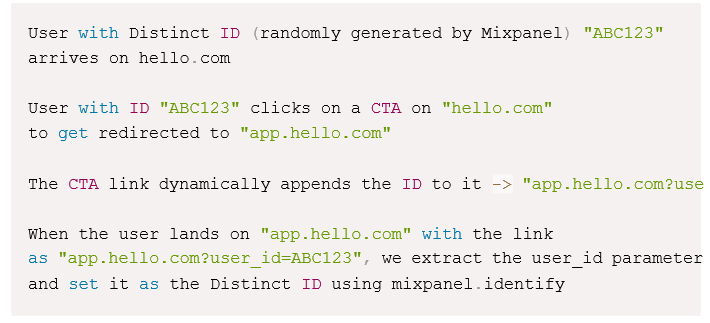
* To track users across domains or from web to app, append the user ID to the URL when going to a new domain, then extract and set it as the user ID on the new domain.
AutoTrack
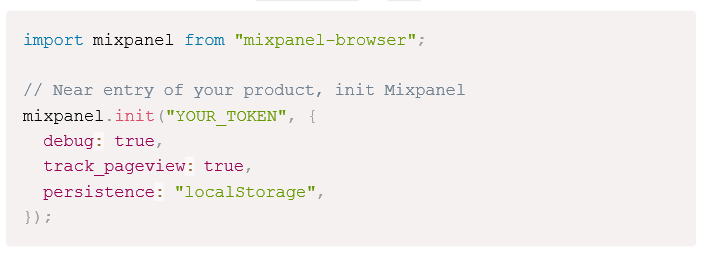
While configuring the SDK, set track_pageview to true.
Event tracking
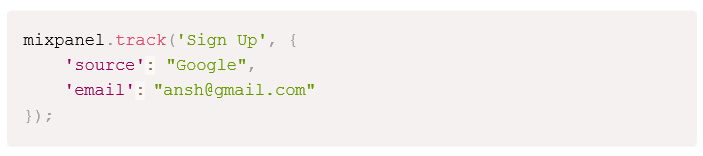
To track an event along with properties, embed the tracking code in the function that triggers the event. For example, to track a user sign-up:
Profile properties
To save the email as a profile property when user signs up, add the following code along with the sign up track call.

Super properties
To save the email as a super property when user signs up, add the following code along with the sign up track call.

To update a super property later, you can reuse this code. If you want to set it only once and never update it, use mixpanel.register_once{}

This works like mixpanel.register_once{} , but it wonʼt overwrite super properties that are already set.
Incremental properties
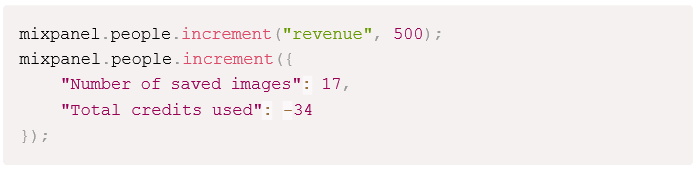
You can track numeric properties, like the number of items downloaded, and increment them each time the user performs an action. For example:

If you want to increment by a value other than 1 or track multiple properties at once:
Mixpanel learning course
Every week, I’m going to talk about one topic from Mixpanel. If you’d like to access everything at once, take a look at my course on Mixpanel.
The course is a comprehensive deep dive into Mixpanel, covering each feature with relevant, practical examples.
By the end of the course, you'll become a Mixpanel expert—equipped with the knowledge and confidence to navigate and use the platform like a pro.
Having worked with 60+ startups, I’ve structured this course to focus on what actually gets used in Mixpanel and how.
Each chapter includes a video tutorial and a written document (with visuals) so you can choose the learning format that suits you best—video, text, or both!

![[Week 28] Learning Mixpanel: Computed Properties](/content/images/size/w600/2026/02/e73fb366-1c52-4f79-a28f-4a0b60d6998c_836x723.png)
![[Week 27] Learning Mixpanel: Bucket Customisation Types](/content/images/size/w600/2026/02/a81f7bcb-4886-4711-b1b8-af8c5fc6b1b8_463x476.png)
![[Week 26] Learning Mixpanel: Mastering Attribution with Mixpanel](/content/images/size/w600/2026/02/4e3a164c-bfb1-479f-9f09-2f8890eac413_885x787.png)