[Week 27] Learning Mixpanel: Bucket Customisation Types
Introduction
Welcome to Week 27 of Learning Mixpanel. I’m Ansh, a Mixpanel Certified Partner. I’ve had the privilege of working with 150+ startups, helping them set up their analytics infrastructure and gain actionable insights using Mixpanel.
Curious about my work? Check out my website for case studies, testimonials, and more details about what I do.
Tired of Mixpanel data going wrong - events missing, properties breaking, or random spikes?
Pravix makes it simple to detect these issues and keep your data clean.
Today, I’m going to talk about how to use bucket customisation in Mixpanel.
Let’s get into it
If your preferred consumption is audio visual - access the video on Youtube
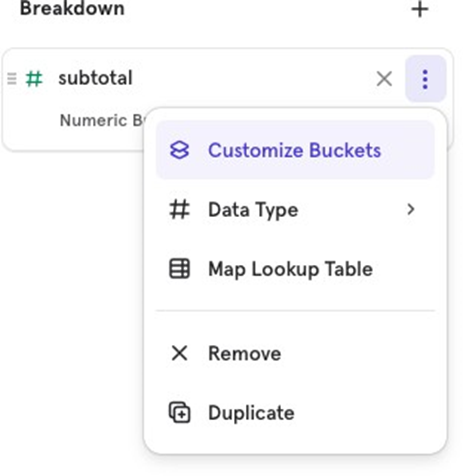
When breaking down a report using a property, Mixpanel allows you to bucket the values of a property into categories based on the property’s data type.
There are two main property data types: Numeric and String, and each has specific ways of customizing the buckets.
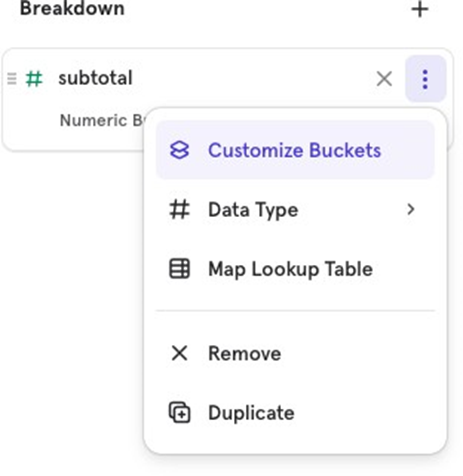
Numeric
When breaking down by a numeric property, such as “Subtotal,” Mixpanel offers three methods to customize the buckets:
- Even
- Varied
- None
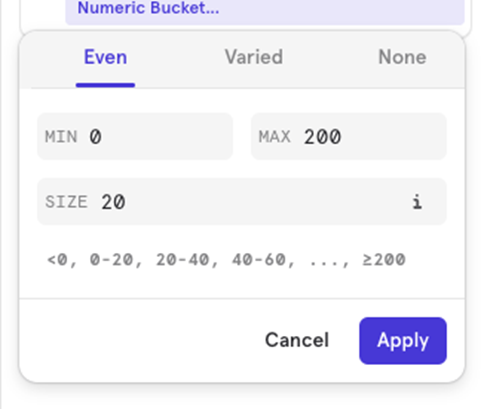
Even
Even bucketing in Mixpanel allows you to group numeric values into evenly sized buckets. To set up an even bucket, you’ll need to provide three key values:
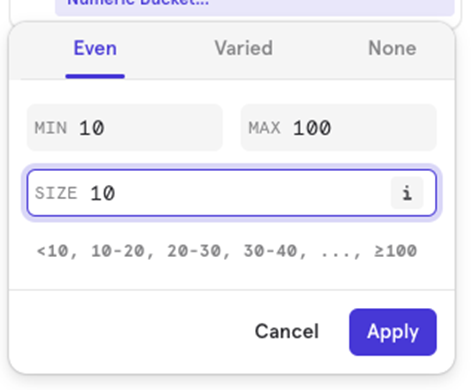
- Min: Defines the starting point for the buckets. Any values below the minimum will be grouped in a “Minˮ bucket.
- If you set the Min to 10, all values below 10 will be grouped into the “10ˮ bucket.
- Max: Sets the ending point for the buckets. Any values exceeding the maximum will be grouped in a “Maxˮ bucket.
- If you set the Max to 100, all values above 100 will be grouped into the “100ˮ bucket.
- Size: Defines the size or range of each bucket. Buckets will increment by the specified size.
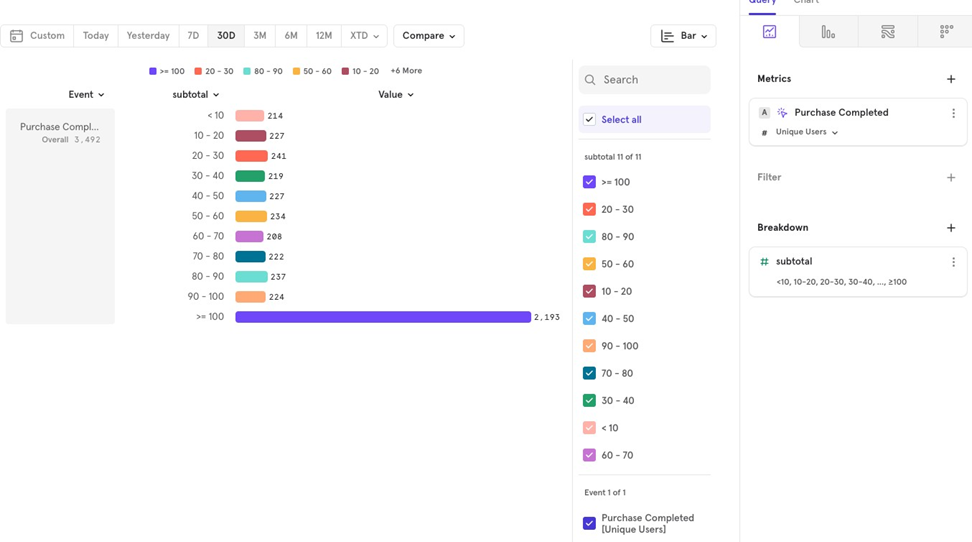
- If you set the Size to 10, the buckets will be incremented in steps of 10, creating ranges like 10/20, 20/30, and so on, up to the Max value.
Varied
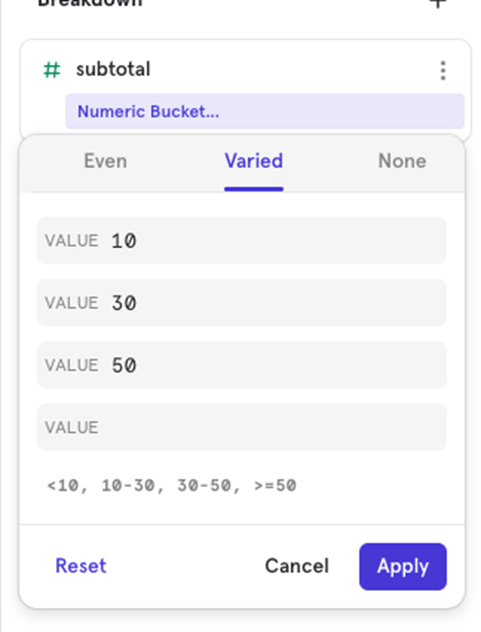
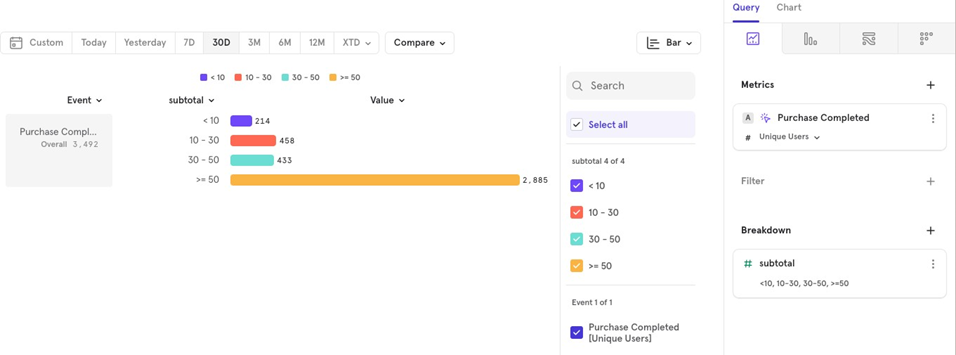
You can manually set the range for each bucket, allowing for flexibility in defining the segments.
Example: You could set varied ranges, such as $0/$30, $31/$50, $50, depending on the data distribution.
None
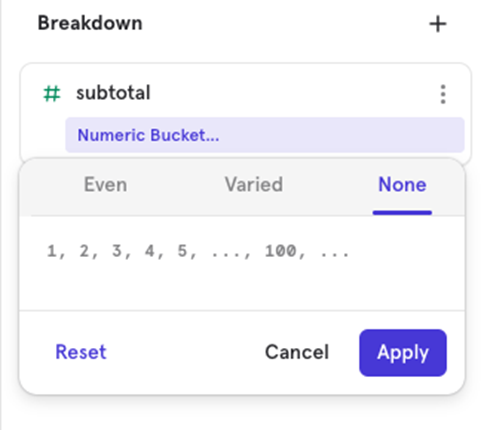
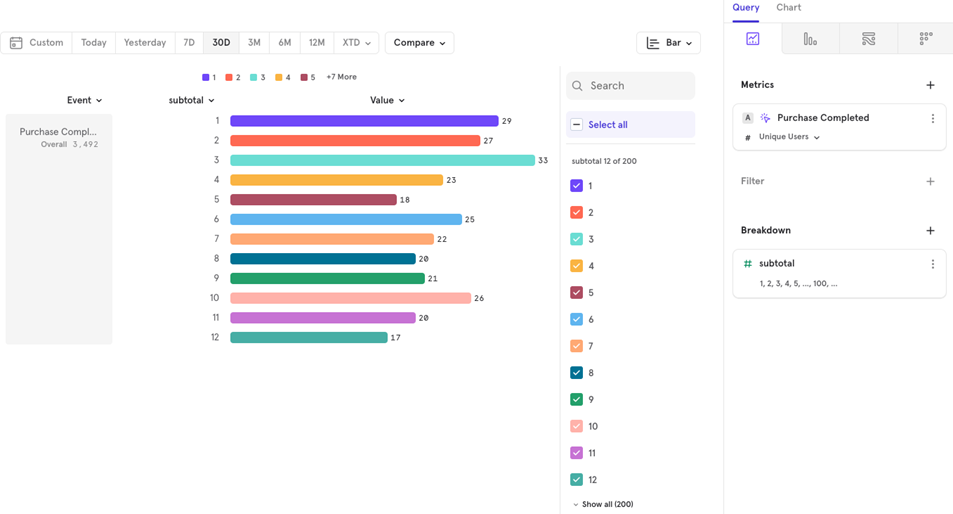
None bucketing does not group values into any predefined ranges. Instead, it displays the actual data values without any grouping or categorization.
String
When breaking down by a string value, you can create custom buckets using If-Else or Contains-Else conditions. These allow you to group certain string values together, based on specific criteria.
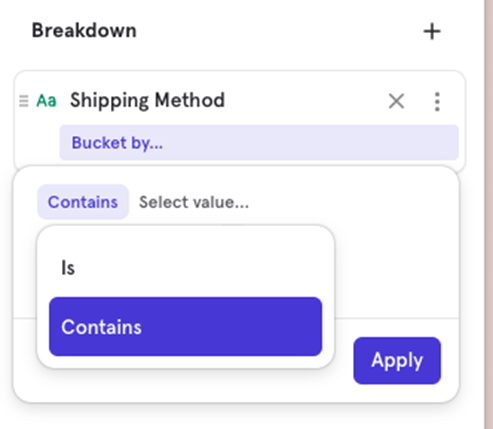
For example, letʼs say you want to break down the “Purchase Completed” event by the “Shipping Method” property, and you want to group certain shipping methods together for easier analysis.
If- Else conditions
The If-Else condition allows you to group property values into a single bucket based on exact matches. This is useful when you want to manually categorize multiple values under a specific label.
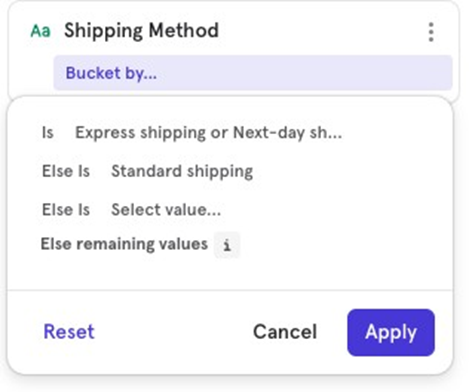
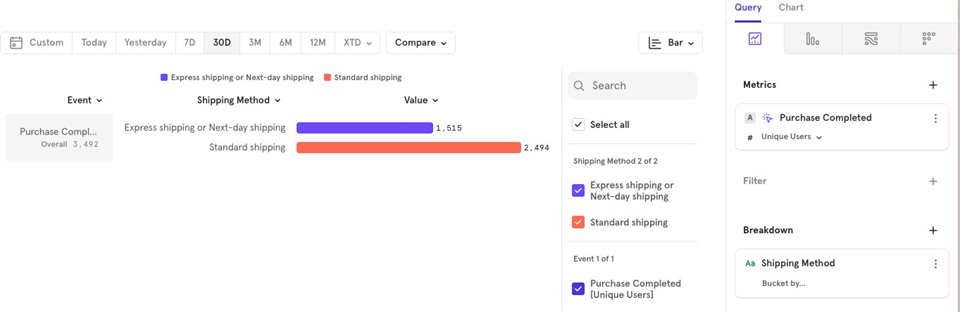
Example: Let’s say youʼve broken down the “Purchase Completed” event by the “Shipping Method” property and want to group certain shipping methods together:
- Express Shipping and Next Day Shipping into one bucket, labeled “Fast Shipping.”
- Keep Standard Shipping as a separate bucket.
To achieve this, you could set up an If-Else condition like this:
- If Shipping Method is “Express” or “Next Day” → Group as “Fast Shipping.”
- Else Keep as “Standard Shipping” or any other default category.
Contains- Else conditions
The Contains-Else condition allows you to group values based on whether they contain a certain substring.
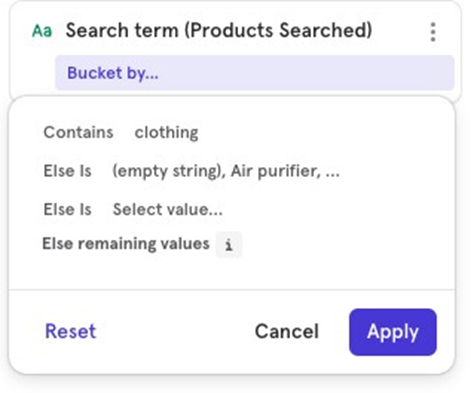
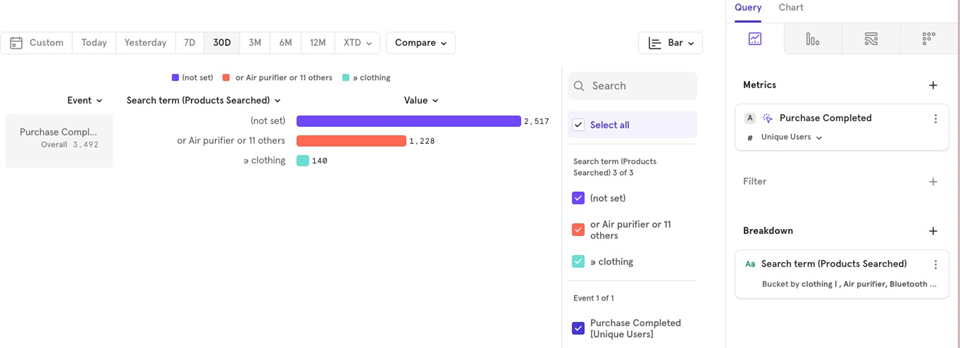
Example: Letʼs say you want to group values in the “Search Term” property for all searches containing the word “clothing.”
You could set up a Contains-Else condition like this:
- Contains “clothing” → Group as “Clothing Related.”
- Else → Group as “Other.”
Get new posts by email
Simplifying analytics for Founders and PMs. One email when a post goes out.