[Week 5] Learning Mixpanel: User Profiles
Introduction
Welcome to Week 5 of Learning Mixpanel. I'm Ansh, a Mixpanel Certified Partner. I’ve had the privilege of working with 150+ startups, helping them set up their analytics infrastructure and gain actionable insights using Mixpanel.
Curious about my work? Check out my website for case studies, testimonials, and more details about what I do.
Today, I’m going to talk about user profiles in Mixpanel.
Let’s get into it
User Profiles
If your preferred consumption is audio visual - access the video on Youtube.
User profiles are created when Mixpanel identifies a new user. Each profile stores data on user events and properties.
Using the Users Tab, you can:
- Filter users based on specific events, cohorts, or property values.
- Customize the columns you see on the screen.
- Export users along with their properties.
Creating/ Updating a User Profile

There are 3 ways to create or update user profiles:
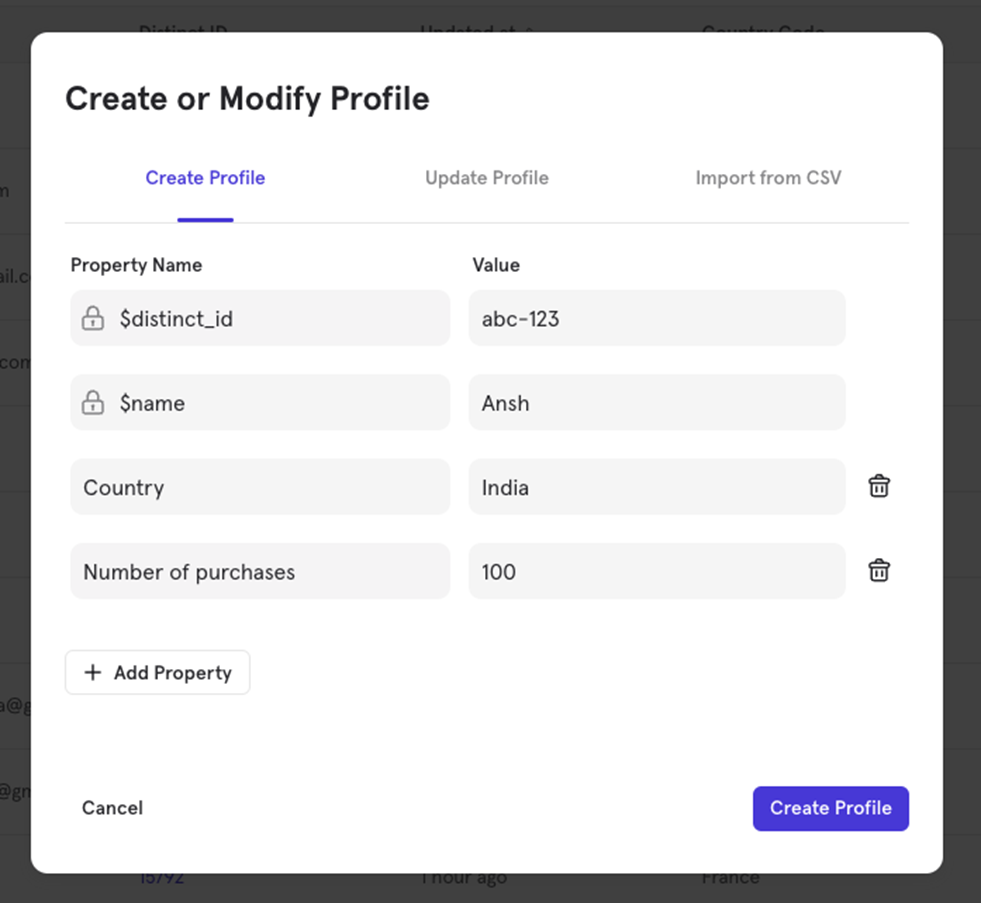
Create a profile
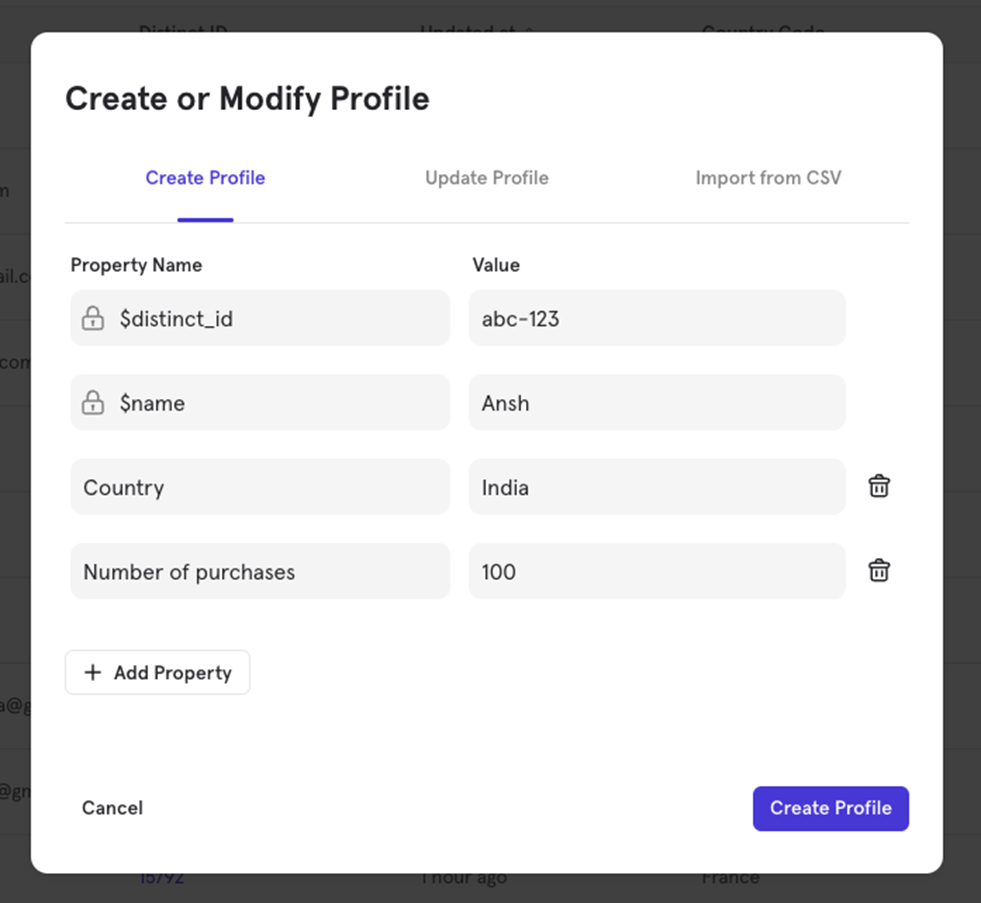
You can manually create a new user profile by specifying their distinct_id and name (required properties). You can also add other properties and their values. Once created, any event with this distinct_id will be linked to this user profile.
Update a profile
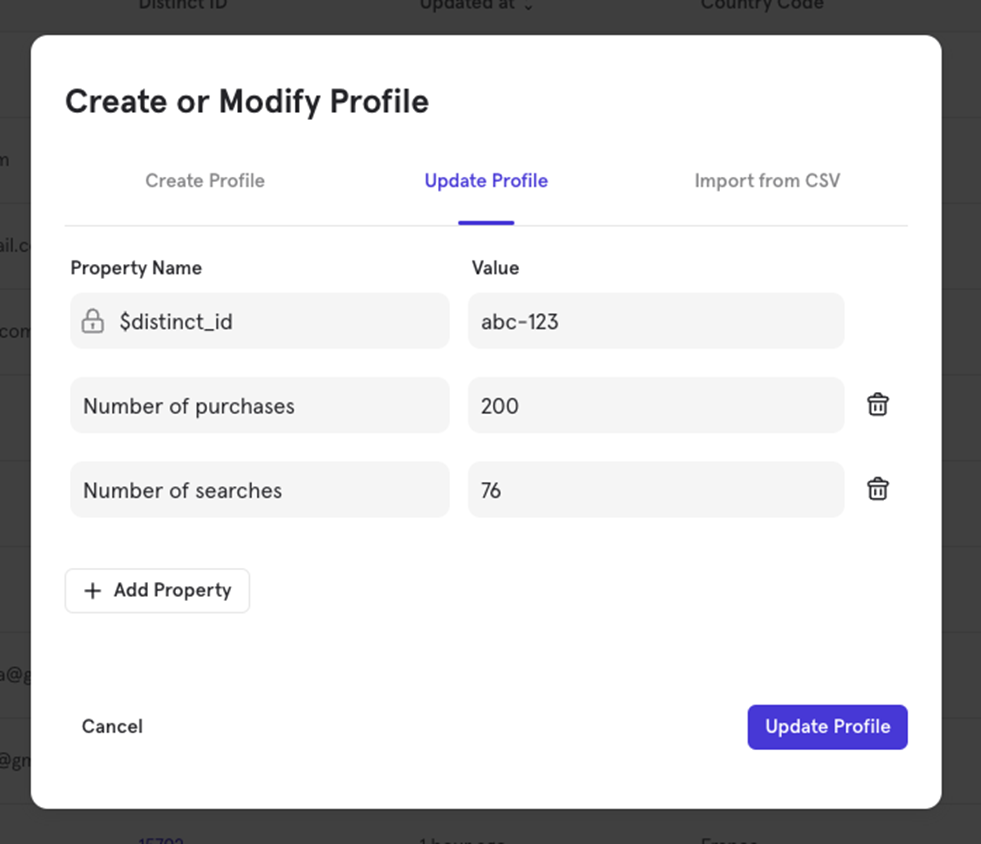
Updating a profile is similar to creating one. You can add new properties or update existing ones. For example, if a user profile has number of purchases as 100, you can update it to 200 and add a new property like number of searches.
Import from CSV Create/ Update a profile
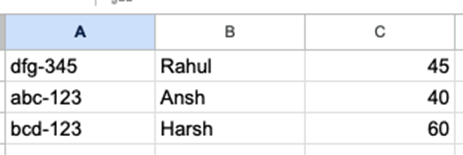
You can create or update multiple user profiles by uploading a CSV file. The file must include a column with distinct_id for Mixpanel to recognize the users.
The CSV doesn't need headers; otherwise, Mixpanel will treat them as data.
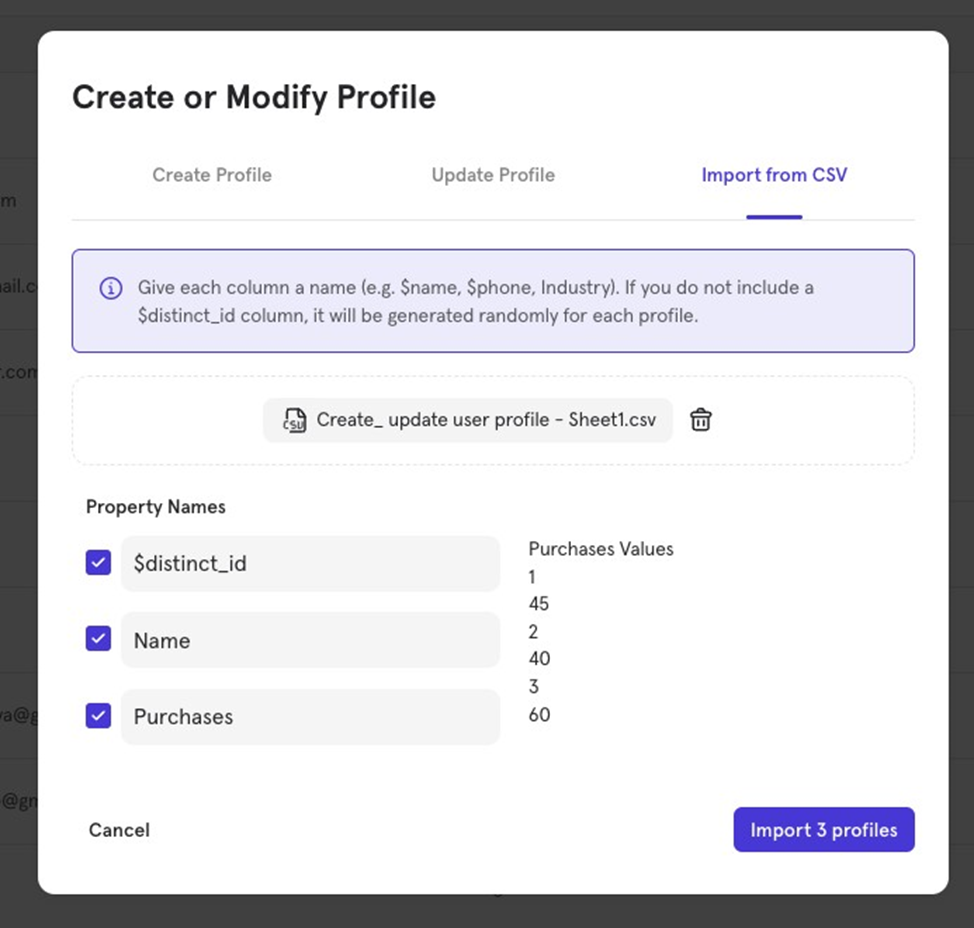
After uploading, assign names to each column (e.g., $name, $phone). If no $distinct_id column is present, Mixpanel will generate one.
Mixpanel will create new profiles for IDs that donʼt exist, and update the ones that do.
Updating/ Deleting a User Property
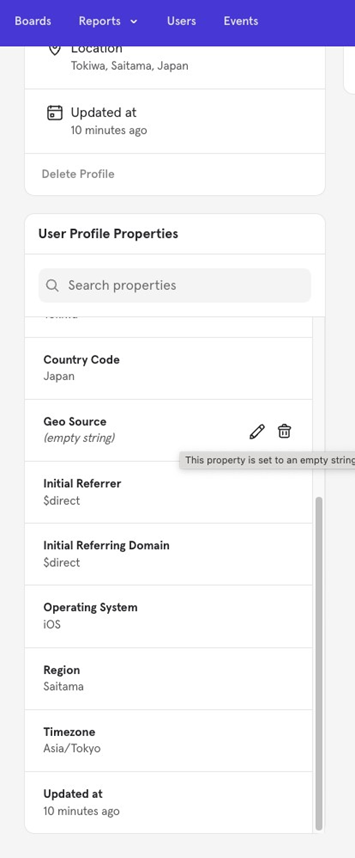
You can go to a specific user's profile and manually update their property value or delete a property from their profile as needed.
Mixpanel learning course
Every week, I’m going to talk about one topic from Mixpanel. If you’d like to access everything at once, take a look at my course on Mixpanel.
The course is a comprehensive deep dive into Mixpanel, covering each feature with relevant, practical examples.
By the end of the course, you'll become a Mixpanel expert—equipped with the knowledge and confidence to navigate and use the platform like a pro.
Having worked with 150+ startups, I’ve structured this course to focus on what actually gets used in Mixpanel and how.
Each chapter includes a video tutorial and a written document (with visuals) so you can choose the learning format that suits you best—video, text, or both!
Get new posts by email
Simplifying analytics for Founders and PMs. One email when a post goes out.