How to Send Conversions to Google Ads and Meta (2026)
Browser tags miss conversions. Keep the tag, add customer-data matching, add server-side sending, and give both the same event ID so nothing counts twice.
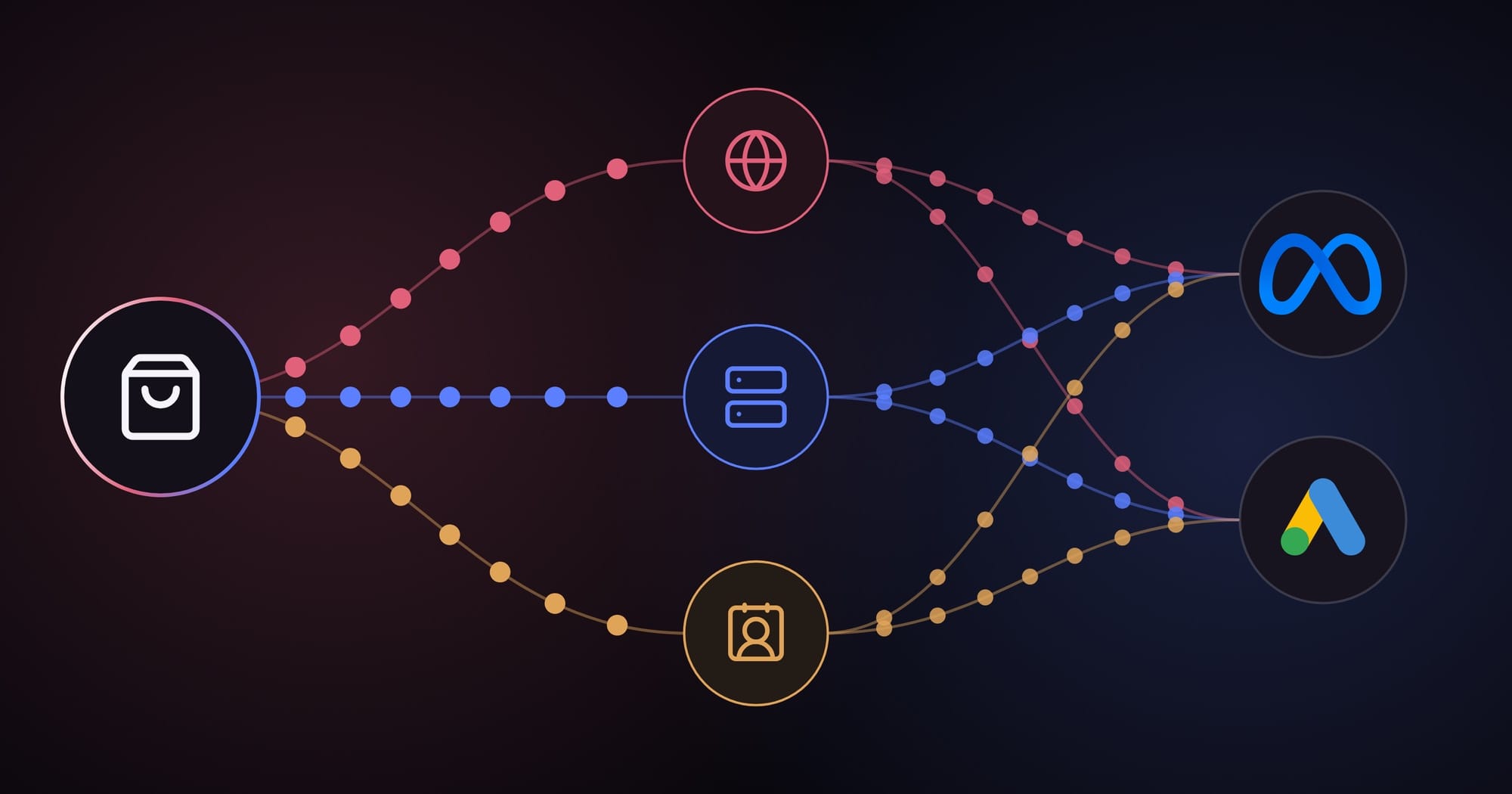
The short version: Browser tags miss conversions, and Google and Meta can only optimize on what they receive. For most businesses the fix is the same: keep the browser tag, add customer-data matching (Google enhanced conversions, Meta advanced matching), add server-side sending (Meta Conversions API, server-side Google Tag Manager), and give both the same event ID so nothing counts twice. If your sales close later, in a CRM, send those back too.
A founder asks me why Meta shows fewer purchases than their store. When I take a look, the browser tag is firing correctly. It's the visitors with ad blockers, declined cookie banners and Safari's cookie limits that never reach Meta, so the platform optimizes on a fraction of the real sales.
This guide is for whoever has to fix that: the marketer, growth lead or developer setting it up, or the person hiring someone to.
A lot changed in 2026, so many guides online are now out of date. Google moved offline conversion uploads to its Data Manager API. It started merging its enhanced conversions settings into one switch. And first-party mode, which Google renamed Google tag gateway in May 2025, now has setup routes for Cloudflare, Akamai, Fastly, Amazon CloudFront and Google Cloud.
I'll break this guide into six parts. Part 1 covers the ideas that apply to both platforms. Parts 2 and 3 go through every method for Google and Meta, one by one. Part 4 is a field-by-field reference, Part 5 helps you pick a setup, and Part 6 covers testing. FAQs follow at the end. If you only care about one platform, jump straight to it.
Contents
- Part 1: Foundations that apply to both platforms
- Part 2: Sending conversions to Google Ads
- Part 3: Sending conversions to Meta
- Part 4: What to send, field by field
- Part 5: Choosing a setup by business type
- Part 6: Testing, monitoring and common mistakes
- FAQs
Part 1: What do you need to know before you pick a method?
You need to know what an event contains, how platforms match it to a person, how to hash and store identifiers, and how deduplication and consent work. These ideas apply to both Google and Meta, so I'll explain them once here and keep the platform sections short.
What is inside a conversion event?
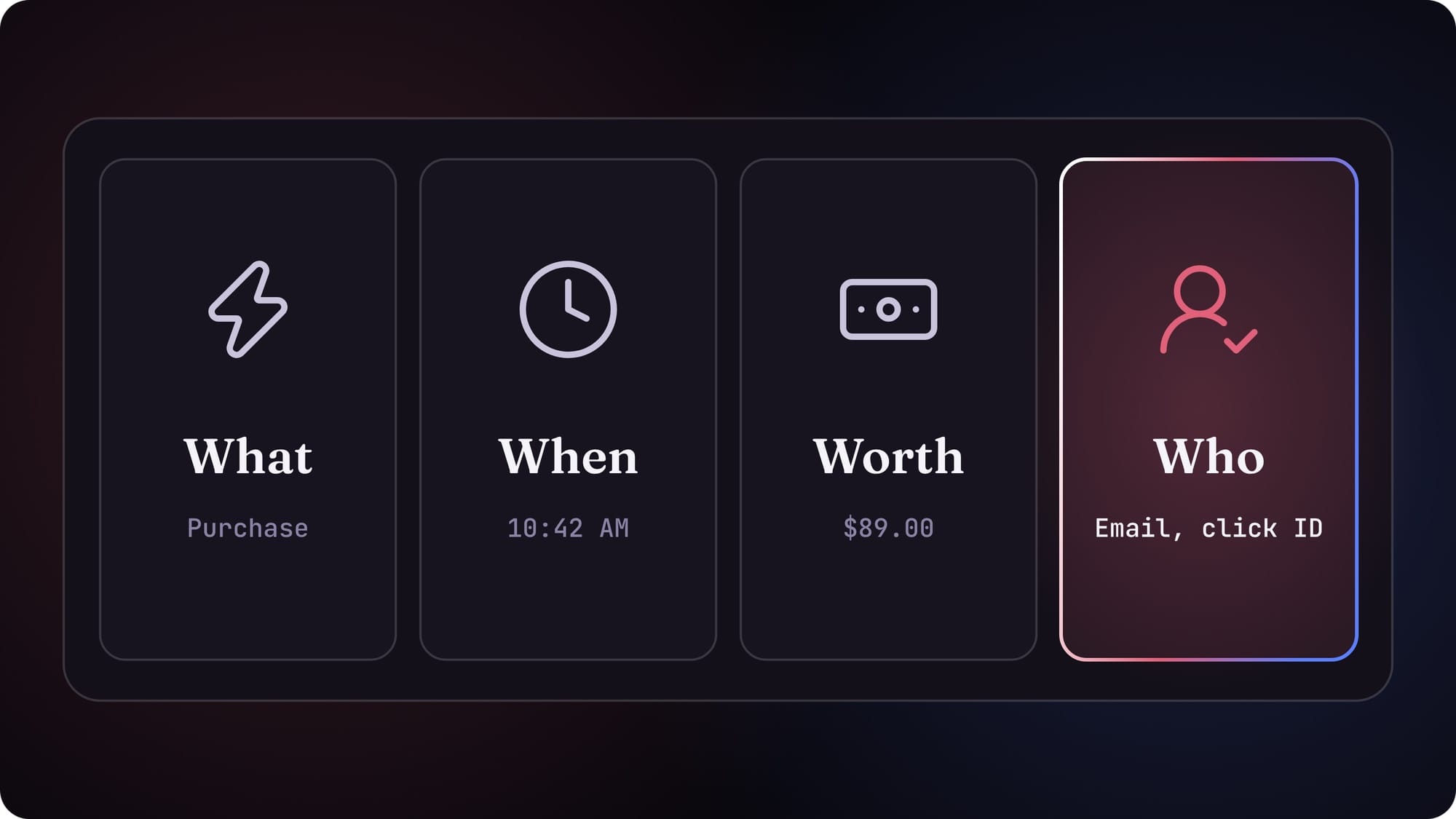
Every conversion you send carries four things:
- What happened. The event name, like Purchase or Lead.
- When it happened. A timestamp.
- How much it was worth. Value, currency, and an order or lead ID.
- Who did it. The identifiers the platform uses to match the event to a person.
The first three are easy. The fourth decides whether the platform can use your event at all.
How does matching work?
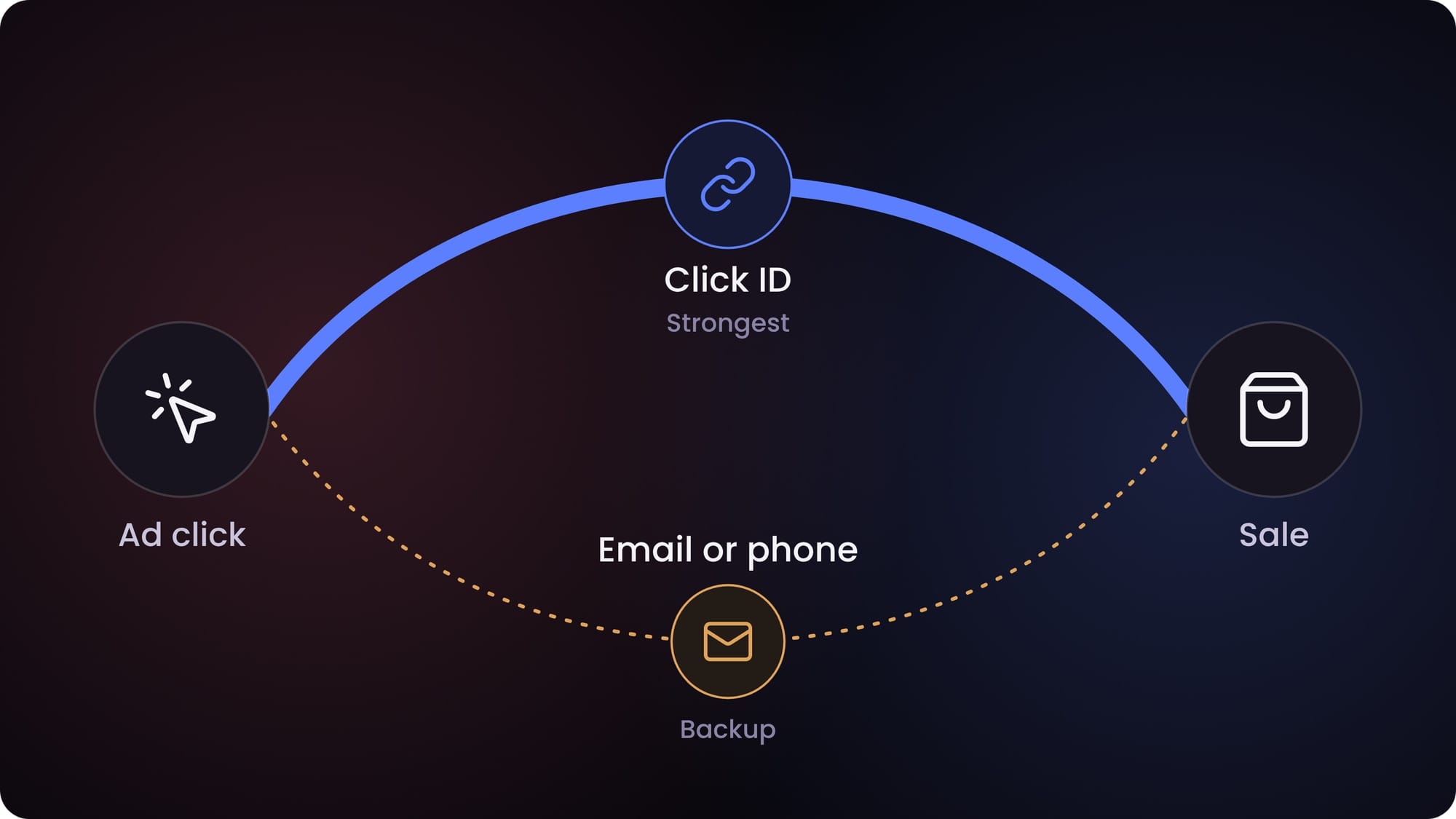
The platform links your event to a person who saw or clicked an ad. It uses two kinds of identifiers.
Click and browser IDs. When someone clicks a Google ad, Google adds a gclid to the landing page URL. On iOS you may see gbraid or wbraid instead. Meta adds an fbclid, which the Pixel stores in a first-party cookie called _fbc. The Pixel also sets a browser cookie called _fbp.
Customer details. Email, phone, name and address. You hash these with SHA-256 before sending, so the platform gets a code, not the raw detail.
Click IDs are the strongest match, because they point at one specific ad click. Customer details fill the gap when the click ID is missing, which happens a lot with ad blockers, Safari and conversions that close days later.
How do you hash customer details correctly?
Normalize each value first, then hash it, because your output has to match the platform's. Use these steps:
- Lowercase the value.
- Trim spaces from the start and end.
- Format phone numbers for each platform. Google wants E.164, with the plus sign and country code, like +14155550123. Meta wants digits only with the country code, with no plus, symbols or leading zeros, like 14155550123.
- Hash with SHA-256.
Build a separate normalized value for each platform. The rules differ, so one shared value can break a match on the other side. For example, Google asks you to remove dots from Gmail addresses, and Meta's docs don't.
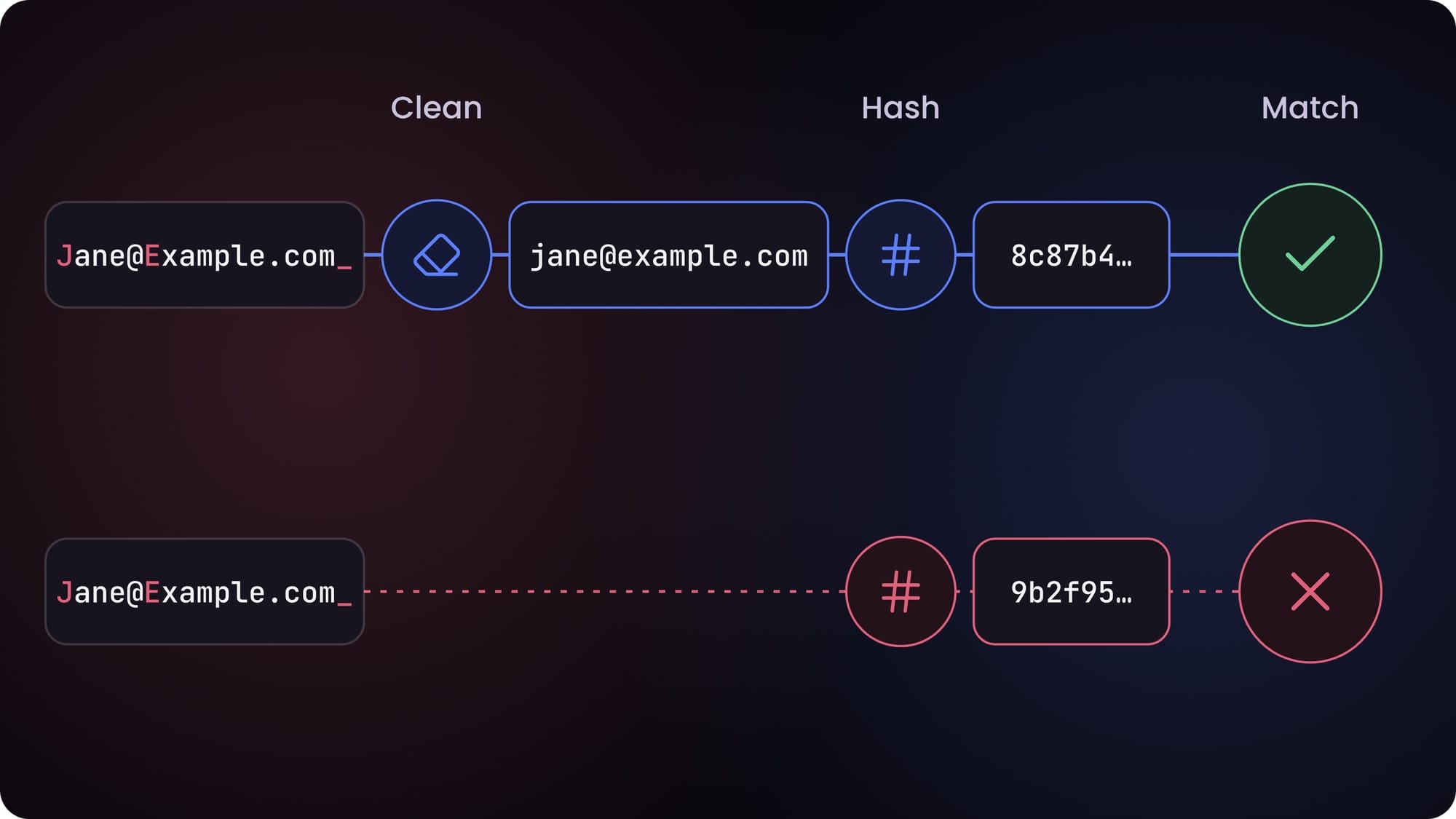
Note: never hash click IDs, IP addresses or user agents. The platforms expect those in plain text, and a hashed click ID matches nothing.
How do you keep click IDs until the conversion happens?
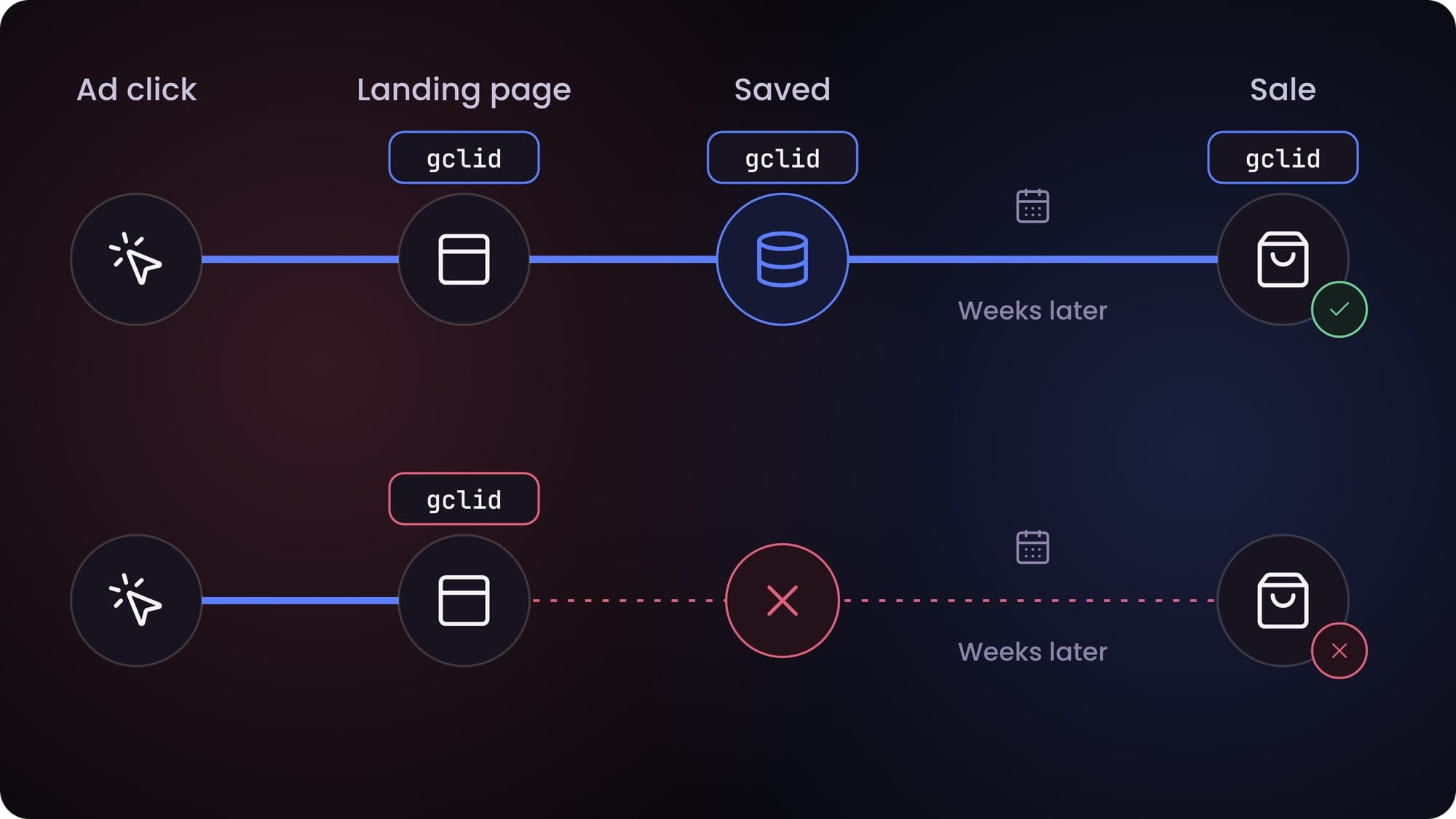
Save them when the visitor lands. Click IDs arrive in the URL on the first page view only. If the conversion happens later, on a second visit or after a sales call, the ID is gone unless you saved it. The usual places:
- A first-party cookie on your domain
- A hidden field in your lead form, so it travels with the lead
- The lead or contact record in your CRM
If you skip this, a CRM upload weeks later has only the customer's email to match on. That still works, but you lose the strongest match key you had.
What is deduplication?
Deduplication makes the platform count a conversion once when the browser and your server both send it. It does this by matching a unique ID that you send from both sides.
Use an ID you already have, usually the order ID or lead ID. Each platform handles this a little differently, and I'll cover the specifics in Parts 2 and 3.
Does server-side sending change consent?
No. Server-side sending does not change your legal requirements. Capture the visitor's consent choice, pass it to Google through Consent Mode v2, and only send Meta events where you have a lawful basis to.
Where does a server-side event come from?
There are three common sources:
- Your backend, at the moment the order or signup is saved
- A tagging server that receives events from the browser and forwards them (server-side Google Tag Manager)
- Your CRM or warehouse, which sends conversions later, when a lead closes
Of the three, the backend is the most reliable for purchases and signups. That data can't be blocked, so it matches your database, as long as your backend retries a request that fails.
If you want the longer version of how browser, own-domain and server-side tracking compare, I've written a separate guide on client-side vs proxy vs server-side tracking.
Part 2: How do you send conversions to Google Ads?
Start with the Google tag and enhanced conversions, then add server-side or CRM sending based on where your conversions happen. Google has eight ways in. Here they are side by side, then one at a time.
| Method | How it works | Who sets it up | Effort |
|---|---|---|---|
| Google tag or GTM conversion tag | The browser fires a conversion with a conversion ID and label on the success page or event | Marketer, with GTM | Low |
| GA4 key events imported to Google Ads | A GA4 event is marked as a key event and imported as a conversion action | Marketer | Low |
| Enhanced conversions (web) | The tag also sends hashed email, phone or address from the page | Marketer with GTM, or developer for the data layer | Low to medium |
| Google tag gateway | Google tags and hits are served through your own domain via a CDN or load balancer | Marketer or web admin with CDN access | Low to medium |
| Server-side GTM | The browser sends one stream to your tagging server, which forwards it to Google Ads, GA4 and others | Analytics engineer or agency | Medium to high |
| Enhanced conversions for leads | Your CRM sends the closed sale with hashed customer details, and the click ID (required if no tag collects customer data) | Developer or CRM admin | Medium |
| Multi-source conversions | Your server sends the same conversion as an extra data source through the Data Manager API, with the same transaction ID | Developer | Medium |
| Conversion adjustments | You send refunds, cancellations or new values after the conversion | Developer, or a marketer using file uploads | Medium |
What changed at Google in 2026?
Google started merging its enhanced conversions settings, moved offline uploads to a new API, and labelled click-ID-only imports as legacy. Each one makes older guides wrong.
One switch for enhanced conversions. Since April 2026, Google accepts customer data from the tag, Data Manager and the API at the same time. Starting in June 2026, it began combining enhanced conversions for web and for leads into one on/off setting, so you no longer pick a setup method in the account. (Google's update notice)
Offline uploads moved to the Data Manager API. From 15 June 2026, offline conversion imports and enhanced conversions for leads uploads go through the Data Manager API. The Google Ads API blocks them for anyone who wasn't already using it. (Google Ads Developer Blog, May 2026)
Click-ID-only imports are legacy. Google now labels file imports keyed only on the gclid as legacy, and points you to enhanced conversions for leads instead. (Google's import guide)
1. The Google tag or a GTM conversion tag
The Google tag is the standard browser setup. Every Google Ads account starts here.
How it works: The tag fires on your thank-you page, or on an event like a form submit. It sends a conversion ID and a conversion label, which tell Google which conversion action this is.
Who sets it up: A marketer, usually in Google Tag Manager.
Setup steps: Create the conversion action in Google Ads. Add a Google Ads conversion tag in GTM with the ID and label. Trigger it on the success page or event. Test it with Tag Assistant.
Limits: It runs in the browser, so ad blockers, declined consent and cookie limits all reduce what it sends.
2. GA4 key events imported into Google Ads
If GA4 already tracks your conversions, you can reuse them in Google Ads.
How it works: You mark a GA4 event as a key event, link GA4 to Google Ads, and import the key event as a conversion action.
Who sets it up: A marketer.
Limits: It inherits every gap GA4 has. If GA4 misses a sale, so does Google Ads. I'd use a direct Google Ads conversion tag for your main conversion, and keep GA4 imports as secondary.
3. Enhanced conversions (web)
Enhanced conversions make the tag also send hashed customer details from the page, like the email typed into the checkout form.
How it works: Google matches the hashed details to signed-in Google accounts. That recovers conversions the click ID alone would miss.
Who sets it up: A marketer with GTM, or a developer if you use a data layer.
Setup steps:
- Automatic detection: The tag finds email and phone fields on the page by itself.
- Manual variables in GTM: You point GTM at the right fields with CSS selectors or JavaScript.
- A data layer: Your developer pushes the customer details into the data layer when the order is placed.
I recommend the data layer. Automatic detection and CSS selectors break quietly when someone redesigns the checkout. A data layer keeps working, because the developer controls it.
Limits: It only helps when the visitor gives you an email or phone on that page.
4. Google tag gateway
Google tag gateway sends Google's tags and their data through your own domain, instead of Google's. Google called this first-party mode until May 2025.
How it works: Your CDN or load balancer serves the Google tag from a path on your domain and forwards the hits to Google. Cloudflare, Akamai, Fastly, Amazon CloudFront and Google Cloud all have setup routes. The most recent additions were Akamai and Fastly's automated setup on 14 May 2026, Google Cloud's general release on 1 June 2026, and CloudFront on 3 June 2026. (GTM release notes)
Who sets it up: A marketer or web admin with access to the CDN.
Limits: It reduces blocking, but it does not remove it, and some blockers may still catch it. It also covers Google's tags only, not Meta's. And it does not change consent: the tag still has to respect the visitor's choice.
5. Server-side Google Tag Manager
Server-side GTM is your own tagging server, which sits between the browser and the platforms.
How it works: The browser sends one stream of events to your server. The server forwards them to Google Ads, GA4, Meta and others. You decide what each platform receives.
Who sets it up: An analytics engineer or an agency.
Setup steps: Create a server container in GTM. Host it on Google Cloud or with a hosting provider like Stape. Point it at a subdomain of your site. Then add a client for incoming events, and a tag for each platform.
Limits: You pay for hosting every month, and the cost grows with traffic. Someone also has to maintain it, which is why I'd only add it once ad spend justifies it.
6. Enhanced conversions for leads
Enhanced conversions for leads is the current way to send offline conversions. It's for leads that turn into sales later, in your CRM.
How it works: When a lead closes, you send the sale to Google with the customer's hashed email or phone, and the gclid if you saved it. Google matches it back to the ad click.
An upload contains:
- The conversion action it belongs to
- The conversion time, with timezone
- The value and currency
- An order or lead ID
- The hashed email or phone
- The gclid. Google requires it if you don't use a tag to collect customer data. With a tag, the tag collects it, but keep sending any you already have.
- The consent status for that person
Who sets it up: A developer or CRM admin.
Setup steps: First, set up the Google tag to capture hashed customer data from your lead form. Then import the closed sales. There are three ways to send them now:
- Google Ads Data Manager, in the Google Ads interface. It has connectors for tools like HubSpot, Salesforce, BigQuery and Google Sheets, plus file upload.
- The Data Manager API, for developers sending from your own systems.
- Automation tools like Zapier, for small volumes.
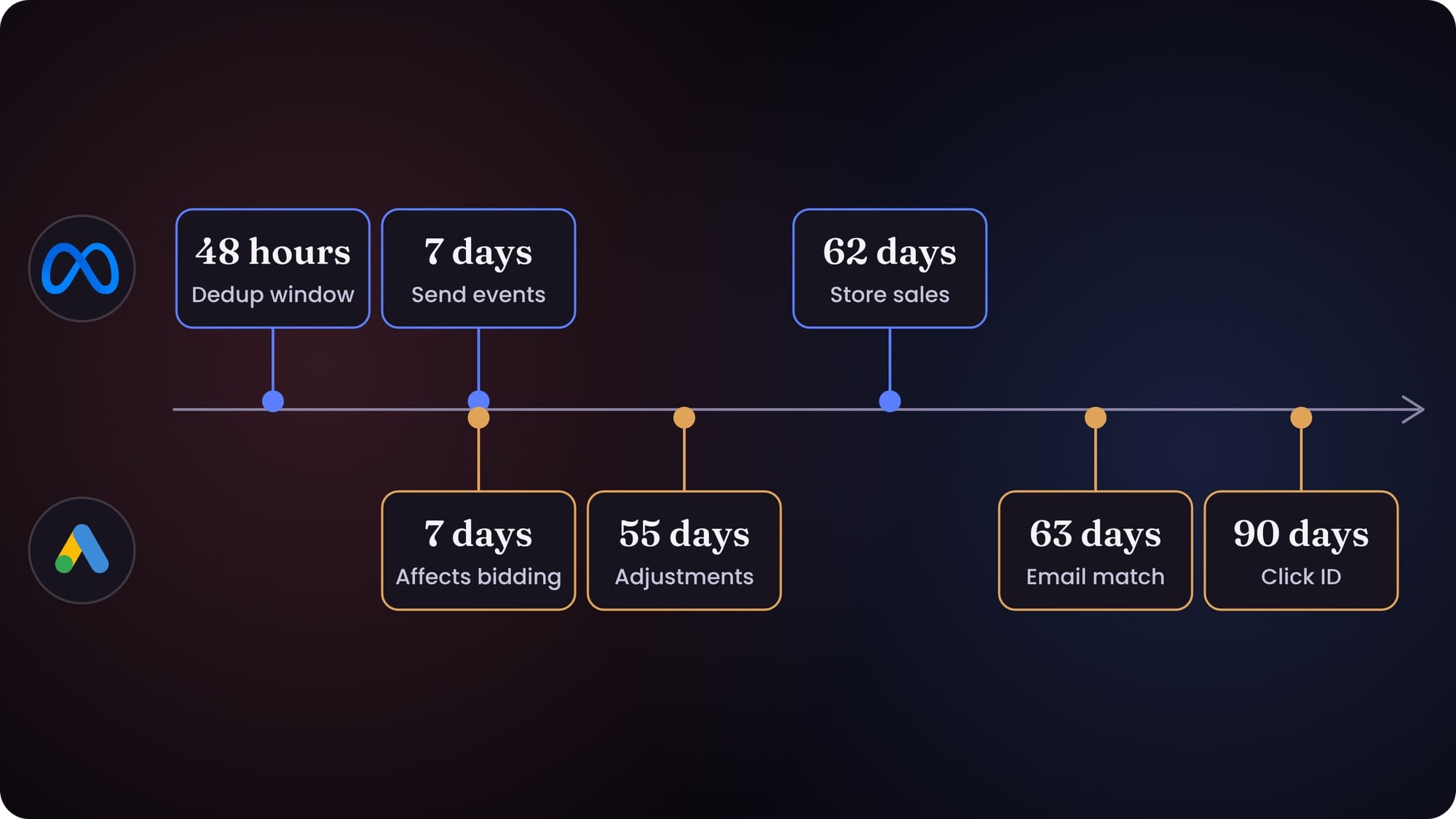
Limits: It only works for leads you can match. Save the gclid at landing, and collect an email or phone on the form. Conversions matched on customer data must be uploaded within 63 days of the click. Gclid uploads have a 90-day limit. (Google's offline import FAQs)
Note: if you have old code sending offline conversions through the Google Ads API, check it. New adopters were blocked from 15 June 2026, and existing ones are expected to migrate to the Data Manager API.
7. Multi-source conversions through the Data Manager API
Multi-source conversions let you send a conversion from your server as an extra data source, alongside your tag. Google made this available to all Google Ads accounts on 10 February 2026. (Data Manager API release notes)
How it works: Your server sends the conversion through the Data Manager API with the same transaction ID as the tag, so Google can combine them.
Who sets it up: A developer.
Limits: The transaction ID is required for this route. Value updates are also turned off during the first 14-day trial period, so don't judge restated values until it ends. (Google's adjustments guide)
8. Conversion adjustments
Conversion adjustments correct conversions after you sent them.
How it works: You send a retraction for a refund or cancellation, or a restatement when the value changes. A file import through Data manager handles both. The Data Manager API guide covers restating values: send the same transaction ID with the new value.
Who sets it up: A developer for automated sending. A marketer can use file uploads.
Limits: Adjustments are accepted for 55 days, but only those made within 7 days of the conversion being recorded feed into automated bidding. Upload at least 24 hours after the original conversion to avoid errors. It's extra work, so it only pays off when refunds are common. That usually means stores with high return rates, or subscriptions with a trial period. (Google's adjustments help page)
How does Google deduplicate conversions?
Google deduplicates on the transaction ID, within one conversion action. If two conversions for the same action share a transaction ID, Google counts the first and treats the second as a duplicate. (Google's transaction ID guide)
Use the order ID on both the browser and server sides. Because this works per conversion action, it won't stop double counting when a GA4 import and a Google Ads tag are two separate actions. Handle that by keeping only one as primary.
What is Consent Mode v2, and which signals matter?
Consent Mode tells Google's tags what each visitor agreed to. It has two modes:
- Basic mode: Tags don't load at all until the visitor consents. Google gets nothing from people who decline.
- Advanced mode: Tags load right away and send cookieless pings when consent is declined. Google uses these to model the conversions it can't see.
Four signals matter for ads:
| Signal | What it controls |
|---|---|
| ad_storage | Cookies for advertising |
| analytics_storage | Cookies for analytics |
| ad_user_data | Sending user data to Google for advertising |
| ad_personalization | Using that data for remarketing and personalized ads |
Your cookie banner sets these, and your tags read them. If you send data from a server, pass the same consent status along with it.
Which conversion actions should be primary?
Make only real business outcomes primary: purchases, qualified leads, signups. By default, Google bids on primary conversion actions. Secondary actions are reported, but they don't affect bidding unless a campaign's goals include them.
Keep micro events like page views, scrolls and button clicks secondary, or don't send them. If they're primary, Google optimizes for people who scroll, not people who buy.
Google docs to keep open
Last checked 2 Nov 2026.
- About enhanced conversions for leads
- Updates to your enhanced conversions settings
- Import conversions from ad clicks using files (legacy)
- Google Tag Manager release notes
- Data Manager API
- Set up Google tag gateway with your CDN
Part 3: How do you send conversions to Meta?
Run the Pixel and the Conversions API together, and deduplicate them with a shared event ID. Meta has seven ways in. It's the same layout as Google, so you can compare them.
| Method | How it works | Who sets it up | Effort |
|---|---|---|---|
| Meta Pixel | The browser fires standard events like PageView, ViewContent, AddToCart, InitiateCheckout, Purchase, Lead and CompleteRegistration | Marketer, plugin or GTM | Low |
| Advanced matching | The Pixel also sends hashed email, phone and other details, automatically or manually | Marketer, or developer for manual | Low |
| Conversions API via a partner integration | Your store or platform sends server events for you, like Shopify or a WooCommerce plugin | Store owner | Low |
| Conversions API Gateway | Meta's ready-made setup that sends Pixel events server-side, running in a cloud account you control | Marketer or web admin | Medium |
| Conversions API via server-side GTM | Your tagging server forwards events to Meta with a Meta CAPI tag | Analytics engineer or agency | Medium to high |
| Direct Conversions API | Your backend calls Meta's API for your Pixel with an access token | Developer | Medium to high |
| CRM and offline events | Your CRM sends later events, like a qualified lead or closed sale | Developer or CRM admin | Medium |
Why should you run the Pixel and the Conversions API together?
Meta recommends a redundant setup: the Pixel and the Conversions API sending the same events. The Pixel catches what the browser can, and the server fills in what the browser misses.
Running only the Pixel leaves you exposed to blocking. Running only the Conversions API loses some browser detail, like the _fbp cookie, unless you pass it through. So use both, and deduplicate.
1. Meta Pixel
The Meta Pixel is Meta's browser script.
How it works: It fires standard events at each step: PageView, ViewContent, AddToCart, InitiateCheckout, Purchase, Lead and CompleteRegistration. Use standard events wherever one fits, because Meta's optimization understands them.
Who sets it up: A marketer, with a plugin or GTM.
Limits: Same as any browser tag: ad blockers, consent and cookie limits.
2. Advanced matching
Advanced matching makes the Pixel also send hashed customer details, so Meta can match more events to accounts.
How it works: Automatic advanced matching picks up email and phone fields from your forms. Manual advanced matching means your developer passes the details to the Pixel directly.
Who sets it up: A marketer switches on automatic matching in Events Manager. A developer handles manual matching.
Limits: Like Google's enhanced conversions, it only helps when the visitor gives you an email or phone.
3. Conversions API via a partner integration
A partner integration is the easiest way to get server events, because your platform sends them for you.
How it works: Shopify has it built into its Meta channel. WooCommerce and most big platforms have plugins that do the same.
Who sets it up: The store owner.
Limits: You get what the integration sends. Check in Events Manager that it sends event IDs, so deduplication works.
4. Conversions API Gateway
The Conversions API Gateway is Meta's own ready-made server setup, for sites that can't build one.
How it works: It runs in a cloud account you own, on AWS or Google Cloud, or through a partner. The Pixel sends each browser event to Meta and to the Gateway, and the Gateway forwards it to Meta from the server.
Who sets it up: A marketer or web admin.
Limits: Meta doesn't charge for it, but you pay the cloud hosting or partner fees every month. It only sends what the Pixel sees, so it doesn't help with offline sales.
5. Conversions API via server-side GTM
This is the same tagging server from the Google section, with a Meta tag added.
How it works: Your browser sends one stream to the tagging server. A Meta CAPI tag forwards the events to Meta.
Who sets it up: An analytics engineer or agency.
Limits: Same as server-side GTM for Google: hosting cost and maintenance. If you already run a tagging server for Google, adding Meta is cheap.
6. Direct Conversions API integration
A direct integration sends events from your backend straight to Meta.
How it works: Your server calls Meta's events endpoint for your Pixel, with an access token from Events Manager. The request looks like this: POST https://graph.facebook.com/{api_version}/{pixel_id}/events.
Meta's Parameter Builder library can help here. It manages fbc, fbp and IP address capture, and normalizes and hashes customer details for you. Normalize and hash only once, either in the browser or on the server, and capture the _fbp and _fbc cookies as early as you can.
Who sets it up: A developer.
Limits: You build and maintain it, including retries. But it's the most reliable source for purchases, because it sends from the place the order is saved.
7. CRM and offline events
Your CRM can send later-stage events to Meta, like a qualified lead or a closed sale. The route depends on where the lead came from.
Leads from Meta Lead Ads (Instant Forms): Use the Conversion Leads integration, so Meta can optimize for qualified leads instead of form fills. Meta says this optimization currently only supports native Lead Ads. Each event needs:
- event_name, set to your CRM stage. Send every stage, including the first lead stage.
- event_time, within the last 7 days and after the lead was created.
- action_source, set to system_generated.
- user_data, with at least one identifier. The lead_id is the one Meta recommends.
- custom_data, with lead_event_source set to your CRM's name and event_source set to crm.
Leads from forms on your website: Conversion Leads doesn't apply. You can still send later stages through the Conversions API with an accurate action_source. Check in Ads Manager which of those events you can optimize for.
In-store sales: Send them with action_source set to physical_store. Meta gives these up to 62 days. (Meta's offline events guide)
Who sets it up: A developer or CRM admin.
How does Meta deduplicate Pixel and server events?
Meta counts a Pixel event and a server event once when two fields match:
- The Pixel's eventID must equal the server's event_id.
- The event_name must be the same on both, like Purchase on both.
Meta only deduplicates events it receives within 48 hours of the first one. Use the order ID as the event ID for purchases, so both sides already have it.
Which fields does every Meta event need?
Every event needs:
- event_name, like Purchase
- event_time, as a Unix timestamp in seconds, not milliseconds
- action_source, like website, app, system_generated or physical_store
- user_data, with at least one identifier
Website events also need event_source_url and client_user_agent.
Note: event_time has a freshness limit. Meta accepts events up to 7 days old, or 62 days for physical_store events. If any event in a request is older than that, Meta rejects the whole request. So if you build a retry queue, drop events once they pass the limit.
What does a Purchase event look like?
Here is one Purchase event, as your server would send it. The hashed values are shortened.
{
  "data": [
    {
      "event_name": "Purchase",
      "event_time": 1792483200,
      "event_id": "order_10482",
      "action_source": "website",
      "event_source_url": "https://example.com/checkout/thank-you",
      "user_data": {
        "em": ["<sha256 of normalized email>"],
        "ph": ["<sha256 of phone, digits only with country code>"],
        "external_id": ["<sha256 of your customer ID>"],
        "fbc": "fb.1.1792480000000.AbCdEf123",
        "fbp": "fb.1.1792470000000.1234567890",
        "client_ip_address": "203.0.113.24",
        "client_user_agent": "Mozilla/5.0 (Macintosh; ...)"
      },
      "custom_data": {
        "value": 89.00,
        "currency": "USD",
        "order_id": "10482",
        "contents": [{ "id": "SKU-123", "quantity": 1 }]
      }
    }
  ]
}
What each part does:
- event_id is the same ID the Pixel sent, so Meta counts this purchase once.
- event_time is in seconds. This one is a timestamp in October 2026.
- em, ph and external_id are hashed. fbc, fbp, IP and user agent are not.
- fbc comes from the fbclid you saved at landing. fbp comes from the _fbp cookie.
- value and currency let Meta optimize for revenue, not just purchase count.
What is Event Match Quality?
Event Match Quality is a score out of 10 for each event in Events Manager. It shows how well Meta can match that event to a person. It covers web events only. Meta rates offline events with a separate score, Offline Data Quality. (Meta's setup guide)
You raise it by sending more good identifiers. Meta's highest-weighted ones are email, phone, IP address, user agent, fbp, fbc, first name and last name.
Can every industry send this data?
No. Meta limits what data and events it accepts from some categories, like health and wellness. Depending on the level, it can remove URL details and custom parameters, block standard events like Lead, AddToCart and Purchase, or block all event sharing in some regions. (Stape's summary, March 2026) If you're in one of these categories, check Meta's policy and your Events Manager status before you rely on any event.
Meta docs to keep open
Last checked 2 Nov 2026.
- Server event parameters
- Customer information parameters
- Handling duplicate Pixel and Conversions API events
- Conversions API Gateway
- Sending offline events using the Conversions API
- The Test Events tab in Events Manager, for checking events before you go live
Part 4: Which fields should you send, and how do you prepare each one?
Send every identifier you have, prepared to each platform's rules, and hash only customer details. This is the table most guides skip. Each row is one field: what Google calls it, what Meta calls it, how to prepare it, and whether to hash it.
| Field | Google tag name | Data Manager API name | Meta | How to prepare it | Hash it? |
|---|---|---|---|---|---|
| emailAddress | em | Lowercase, trim spaces. For Gmail, Google's docs say to remove dots before the @. Check Google's formatting page for how to treat a + suffix | Yes, SHA-256 | ||
| Phone | phone_number | phoneNumber | ph | Google: E.164, like +14155550123. Meta: digits only with country code, no plus or leading zeros, like 14155550123 | Yes, SHA-256 |
| First name | first_name | givenName | fn | Lowercase, trim, no punctuation | Yes |
| Last name | last_name | familyName | ln | Lowercase, trim, no punctuation | Yes |
| Street address | street | addressLine (Google Analytics only) | not used | Lowercase, trim | Yes (Google) |
| City | city | city | ct | Lowercase, no spaces for Meta | Google: no. Meta: yes |
| State or region | region | administrativeArea | st | Two-letter code where one exists, lowercase for Meta | Google: no. Meta: yes |
| Postal code | postal_code | postalCode | zp | Lowercase, no spaces or dashes. US: first 5 digits for Meta | Google: no. Meta: yes |
| Country | country | regionCode | country | Two-letter ISO code, like us | Google: no. Meta: yes |
| Your customer ID | user_id (in some setups) | not a matching field | external_id | Use the same ID everywhere, every time | Meta recommends hashing it |
| Google click ID | gclid, gbraid, wbraid | gclid, gbraid, wbraid | not used | Save exactly as it arrived in the URL | No, never |
| Meta click ID | not used | not used | fbc | Build from fbclid: fb.1.{timestamp in ms}.{fbclid} | No, never |
| Meta browser ID | not used | not used | fbp | Read from the _fbp cookie | No, never |
| IP address | sent by the tag | ipAddress | client_ip_address | Pass it from the original request, not your server's IP | No |
| User agent | sent by the tag | not applicable | client_user_agent | Pass it from the original request | No |
| Order ID | transaction_id | transactionId | event_id and order_id | Same ID in browser and server events | No |
| Value and currency | value, currency | conversionValue, currency | value, currency | Number, plus a three-letter currency code | No |
Note: watch the names. In the Data Manager API, regionCode means the country, not the state. It's easy to confuse with the tag's region field.
Note: the most common hashing mistake is hashing before you normalize. "Jane@Example.com " and "jane@example.com" give two different hashes, so the first one matches nobody. Normalize first, then hash.
The second most common mistake is hashing a click ID or the fbp cookie. Hashed, they're useless, because the platform matches them as they were issued.
Note: the Google columns above cover enhanced conversions. If your sGTM or tag platform does the hashing for you, send the normalized values unhashed to it and let it hash. Don't hash twice.
What should you never send?
Some data shouldn't go to an ad platform, even hashed:
- Health details: Conditions, treatments, appointment types, or page URLs that reveal them, like /treatments/diabetes.
- Financial details: Account numbers, credit scores, loan amounts tied to a person.
- Anything in a URL or event name that identifies a person: Emails in query strings are the usual one. Check your thank-you page URLs.
- Plain-text personal data: Every email, phone and name gets hashed before it leaves your systems, unless a tag platform hashes it for you.
- Data from people who said no: If a visitor declined consent, their personal data doesn't go to the ad platforms. Consent Mode handles this for Google tags. For your own server events, your backend has to check consent before sending.
- Children's data: If your users may be under 13 (or under 16 in some countries), talk to your lawyer before sending anything.
Note: this is not legal advice. What you're allowed to send depends on your country, your industry and your consent setup. If you're in health, finance or anything regulated, get your privacy lawyer to sign off on the field list before you go live.
Part 5: Which setup should you pick for your business?
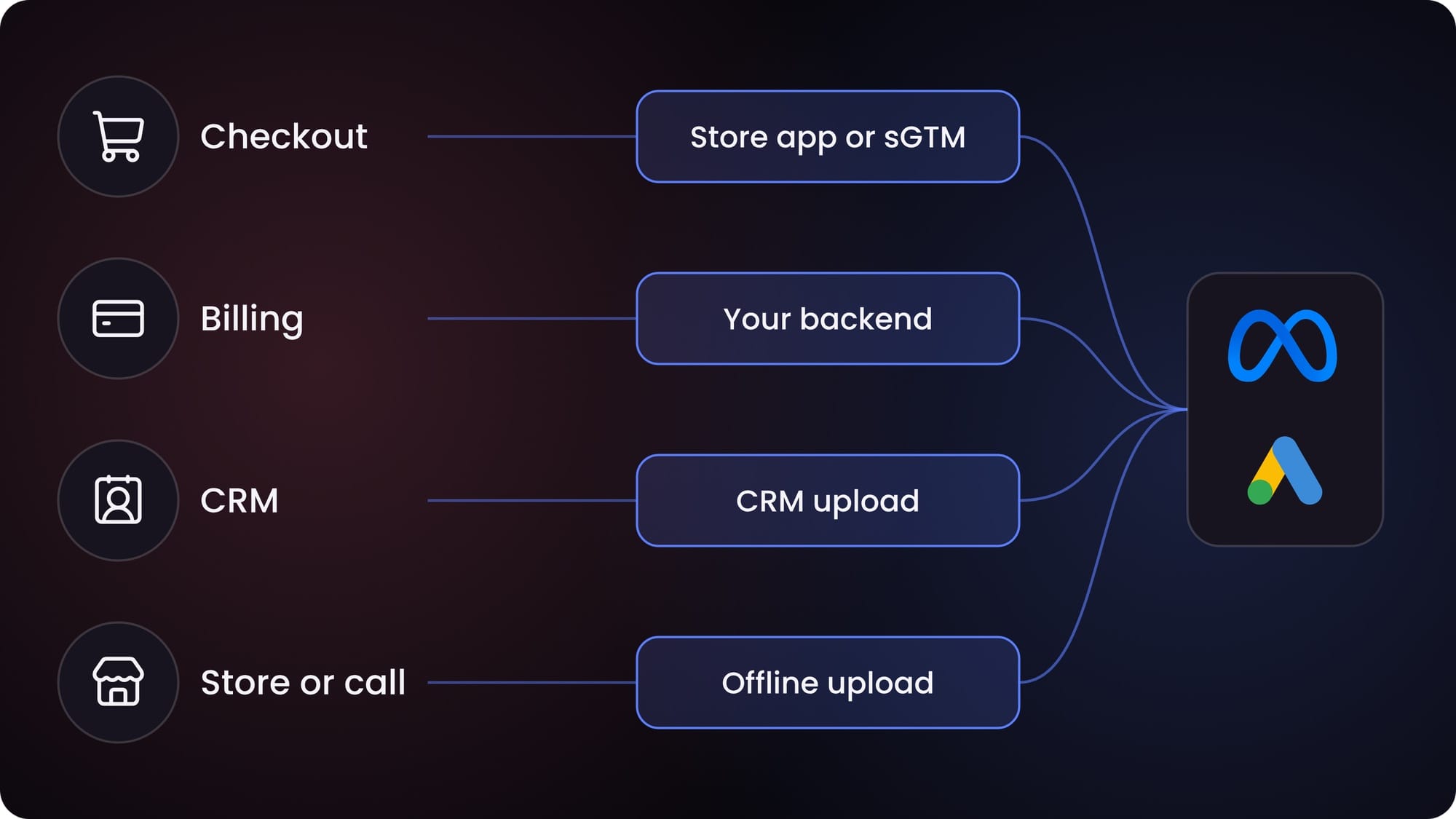
Pick the setup that sends your conversion from where it's confirmed: the checkout, your billing system or your CRM. There's no single right setup. It also depends on who can build things and what you can spend each month. Here's what I'd start with for each type of business.
| Business type | Where the real conversion happens | Google setup | Meta setup | Rough cost and effort |
|---|---|---|---|---|
| Shopify store | Checkout | Google & YouTube app with enhanced conversions | Shopify's Meta channel at maximum data sharing (Pixel plus CAPI) | Low. Mostly settings |
| WooCommerce or custom store | Checkout, in your database | Google tag with enhanced conversions, then server-side GTM once spend justifies it | Pixel plus CAPI through a plugin, or sGTM | Low to medium. Plugin, or sGTM hosting each month |
| SaaS with self-serve signup | Signup, then paid plan in billing | Google tag for signup, server upload of paid conversions from billing | Pixel for signup, direct CAPI for paid conversions | Medium. A developer for the backend events |
| B2B or lead gen with a sales team | Weeks later, in the CRM | Enhanced conversions for leads, with CRM uploads of qualified and won stages | Pixel Lead event plus CRM events through CAPI. Conversion Leads if you use Instant Forms | Medium. CRM admin plus a developer |
| Marketplace or app with web checkout | Server, after payment confirms | sGTM or Data Manager API from the backend | Direct CAPI from the backend | Medium to high |
| Business with offline or phone sales | Store or call centre | Offline uploads through the Data Manager API, or a CRM connector | CRM or offline events with action_source physical_store or phone_call | Medium |
Shopify stores
Start with the native apps. Shopify's Meta channel sends server events and hashed customer data at the Enhanced and Maximum levels, so you get most of the benefit without building anything. For Google, check what the Google & YouTube app sends before you assume it covers server-side.
Add server-side GTM only if you need control the apps don't give you, like custom value rules or sending to platforms beyond Google and Meta. That costs hosting every month, so it should be paying for itself.
WooCommerce and custom stores
The plugin route is fine to start. Once your ad spend is high enough that a few percent of missing conversions matters, move to server-side GTM, because it gives you one tagging server for both platforms.
You could build direct API integrations for each platform instead. But that's two integrations to maintain, and most stores don't need it.
SaaS
Send the signup from the browser and the paid conversion from your backend, with the click ID you saved at signup. The signup is on your site, but the conversion you care about is the paid plan, which happens in billing. If the ad platforms only see signups, they optimize for signups, and you get a lot of people who never pay.
Mark the paid conversion as primary in Google, so bidding optimizes for it.
B2B and lead gen
Send the form fill as the first conversion, then send qualified and won stages from your CRM. This is where most of the value is, because a form fill tells the platform almost nothing about lead quality.
Lead → qualified → won is the order. Start with qualified, because won can take months and the platforms want enough volume to learn from. On Meta, the Conversion Leads optimization only works for Instant Forms leads, so plan website-form leads separately.
Note: this only works if your CRM keeps the click ID or the hashed email from the original form. Check that before you build anything else. If the field isn't there, add it first and wait for data to build up.
Marketplaces and apps with web checkout
Send the conversion from your server, because that's where the payment is confirmed. Browser tags here tend to fire on a success page that may never load.
Offline and phone sales
Capture an identifier at the first touch, like an email, phone or click ID, and store it with the customer record. Without it, there's nothing to match the sale to later.
Part 6: How do you test it, keep it working, and avoid the common mistakes?
Test with a real order or lead after every change, and compare the platforms against your database every week. A setup that worked on launch day can break the next week. A theme update, a renamed checkout step or a new consent banner is enough.
How do you test a new setup?
Do it in this order, with a real test order or lead each time.
- Check the browser side: Use Tag Assistant for Google and the Meta Pixel Helper for Meta. Confirm the conversion fires once, on the right page, with value and currency.
- Check the server side: In Meta, use the Test Events tab in Events Manager with a test event code. In Google, check the tagging server's preview mode if you use sGTM.
- Check deduplication: In Meta, the test event should show as received from both browser and server, and counted once. In Google, check that the transaction ID is the same on both sides and both go to the same conversion action.
- Check the user data: Make sure email and phone are arriving hashed, and click IDs are arriving unhashed.
- Check consent: Decline consent in your banner and run the test again. The tags should behave the way your consent mode setting says they should.
- Compare with your database: After a few days, compare the platform's conversion count with your orders or leads for the same period.
Note: Google can take up to a few days to show conversions in reports, and the enhanced conversions diagnostics need some volume before they say anything useful. Don't judge the setup on day one.
What should you monitor every week?
- Platform conversions vs your database: They'll never match exactly, because of consent, attribution windows and people who weren't from ads. But the gap should be stable. If it suddenly widens, something broke.
- Google's diagnostics: The conversion action status and the enhanced conversions diagnostics in Google Ads show match rate problems and errors.
- Meta's Event Match Quality and dedup rate: A drop in either usually means a field stopped arriving.
- Failed server requests: Your backend should log failures and retry them. If it doesn't, you're losing conversions quietly.
What are the most common mistakes?
| Mistake | What happens | Fix |
|---|---|---|
| Event IDs don't match between Pixel and server | Meta counts each purchase twice | Use the order ID as the event ID on both sides |
| Hashing before normalizing | Hashes don't match, so match quality is low | Lowercase and trim first, then hash |
| Using one phone format for both platforms | One platform's hash doesn't match | Use E.164 with the plus for Google, and digits only for Meta |
| Hashing click IDs or fbp | The platform can't match them | Send click IDs and cookies as they are |
| Click ID not saved at landing | Server events can't be tied to the ad click | Save gclid, gbraid, wbraid and fbclid on landing and store them with the lead or order |
| Two primary conversions for the same action | Google counts and bids on it twice | Keep one primary per action, set the rest to secondary |
| GA4 import and a Google Ads tag both primary | Same as above. The transaction ID won't fix it, because they're separate conversion actions | Pick one as primary |
| event_time in milliseconds | Meta rejects the event | Send Unix seconds |
| Retry queue sending old events | Meta rejects the whole batch once one event is past its limit | Drop events older than 7 days (62 for physical_store) before sending |
| Server sends your server's IP and user agent | Match quality drops | Pass the visitor's IP and user agent from the original request |
| Conversion fires on page load of a thank-you page | Refreshes and back button create extra conversions | Fire on the confirmed order, or deduplicate by order ID |
| Refunds never sent back | Reported revenue stays too high, and bidding learns from it | Send conversion adjustments to Google within 7 days where you can, and handle refunds in your own reporting |
FAQs
Do I need server-side tracking if I already have the Pixel and Google tag?
Not always. If you're a small store on Shopify, the Meta channel already sends server events for you. Server-side starts to matter when you have real ad spend, lots of blocked traffic, or conversions that happen after the website, like paid plans or closed deals.
Is enhanced conversions the same as server-side tracking?
No. Enhanced conversions adds hashed customer data to a conversion, so Google can match more of them. It can run from the browser tag or from a server. Server-side tracking is about where the conversion is sent from.
How long do I need to keep click IDs?
Keep them as long as the conversion can still be uploaded, and store them with the lead or order, not in a session. For Google, gclid uploads are limited to 90 days and uploads matched on customer data to 63 days after the click. The conversion window on the action also applies, which is 30 days by default and can go up to 90. For Meta, events have to be sent within 7 days of happening, or 62 days for physical_store events.
Will this fix the gap between Google Ads, Meta and my database?
It'll make the gap smaller and more stable, but it won't close it. The platforms use different attribution windows and models, and some people decline consent. What you want is a gap you understand and that doesn't move.
What does a server-side setup cost?
It depends on the route. Google tag gateway needs no tagging server, but check your CDN plan for any cost. Server-side GTM and the Conversions API Gateway cost hosting every month, which grows with traffic. A direct API integration costs developer time to build and to maintain.
Can I send conversions without a developer?
Yes, for the first steps. Native store apps, enhanced conversions, advanced matching and the Cloudflare gateway are mostly settings. Backend and CRM events need a developer or an agency.
The one thing to take from this guide
This was a lot, so if you only take one thing from it: send your most important conversion from the place it's actually confirmed, with a matching ID on both sides.
If you'd like a second pair of eyes on your setup, we do this for founders and marketing teams every week. Reach out at ansh@joindatalyze.com.
Get new posts by email
Simplifying analytics for Founders and PMs. One email when a post goes out.